
Many photographers dealing with moire patterns naturally turn to Topaz Photo AI—one of the most popular AI-powered photo enhancement tools on the market. Known for its impressive noise reduction, sharpening, and upscaling capabilities, it seems like a logical candidate for tackling moire interference. But can Topaz Photo AI actually remove moire patterns effectively?
In this honest review, we break down exactly what Topaz Photo AI can and cannot do for moire removal, when it might help, and when you need a dedicated moire removal tool instead. If you need an immediate solution, try our free AI Moire Remover—it's purpose-built for moire patterns and works directly in your browser.
Quick answer: Topaz Photo AI is an excellent photo enhancement tool for noise reduction, sharpening, and upscaling, but it was not specifically designed for moire removal. Its denoise module may reduce mild fabric moire as a side effect, but it will not handle screen photography moire, strong interference patterns, or halftone descreening. For reliable moire pattern removal, dedicated moire removal software trained specifically on moire data delivers significantly better results.
What Is Topaz Photo AI?
Topaz Photo AI is a desktop application developed by Topaz Labs, priced at $199 for a perpetual license (with optional annual upgrades). It uses machine learning models to enhance photos through three core modules:
- Denoise — Removes sensor noise, grain, and digital artifacts from photos
- Sharpen — Recovers detail and corrects blur from motion, focus errors, or lens softness
- Upscale — Enlarges images up to 6x while generating realistic detail using AI
The software is very popular among portrait, landscape, and wildlife photographers who need to salvage images shot at high ISO or recover sharpness from slight focus misses. It integrates with Lightroom and Photoshop as a plugin and runs as a standalone app on Windows and macOS.
What Topaz Photo AI is not is a general-purpose image restoration suite. It targets three specific problems—noise, blur, and low resolution—and solves them well. Moire pattern removal falls outside its designed scope.
Can Topaz Photo AI Remove Moire?
This is the central question, and the answer requires nuance. Topaz Photo AI does not have a moire removal feature, but its denoise module operates on patterns that can overlap with certain types of moire.
What It Can Do
- Mild fabric moire reduction: The Topaz denoise module analyzes and removes repetitive noise patterns. In some cases, mild moire from fabric textures (such as a suit jacket photographed at a problematic distance) may be partially reduced because the AI interprets the moire as noise. This is a side effect, not an intended function.
- Slight halftone smoothing: When applying strong denoising to a scanned image, some halftone dot visibility may decrease, though the underlying pattern often remains.
- General quality improvement: By reducing noise and sharpening detail, Topaz Photo AI can make moire slightly less visually prominent in the final image—without actually removing the interference pattern itself.
What It Cannot Do
- Screen photography moire — The rainbow-colored wavy patterns that appear when you photograph a monitor, TV, or phone screen are not noise. They are optical interference patterns caused by the interaction between the camera sensor grid and the display pixel grid. Topaz Photo AI's denoise model has no training data for this type of artifact and will not remove it. For screen moire, use our Screen Moire Remover.
- Strong interference patterns — When moire is severe (high contrast, covering large areas), the denoise module either ignores it or smears detail while the pattern persists.
- Targeted moire removal — Topaz Photo AI applies its processing globally. It cannot selectively target moire frequencies while preserving fine texture detail in the same area—a key requirement for effective moire removal.
- Halftone descreening — Scanned magazines, newspapers, and printed materials contain halftone dot patterns that require frequency-domain processing to remove. Topaz Photo AI does not perform this type of operation. Our Descreening Tool is designed specifically for this.
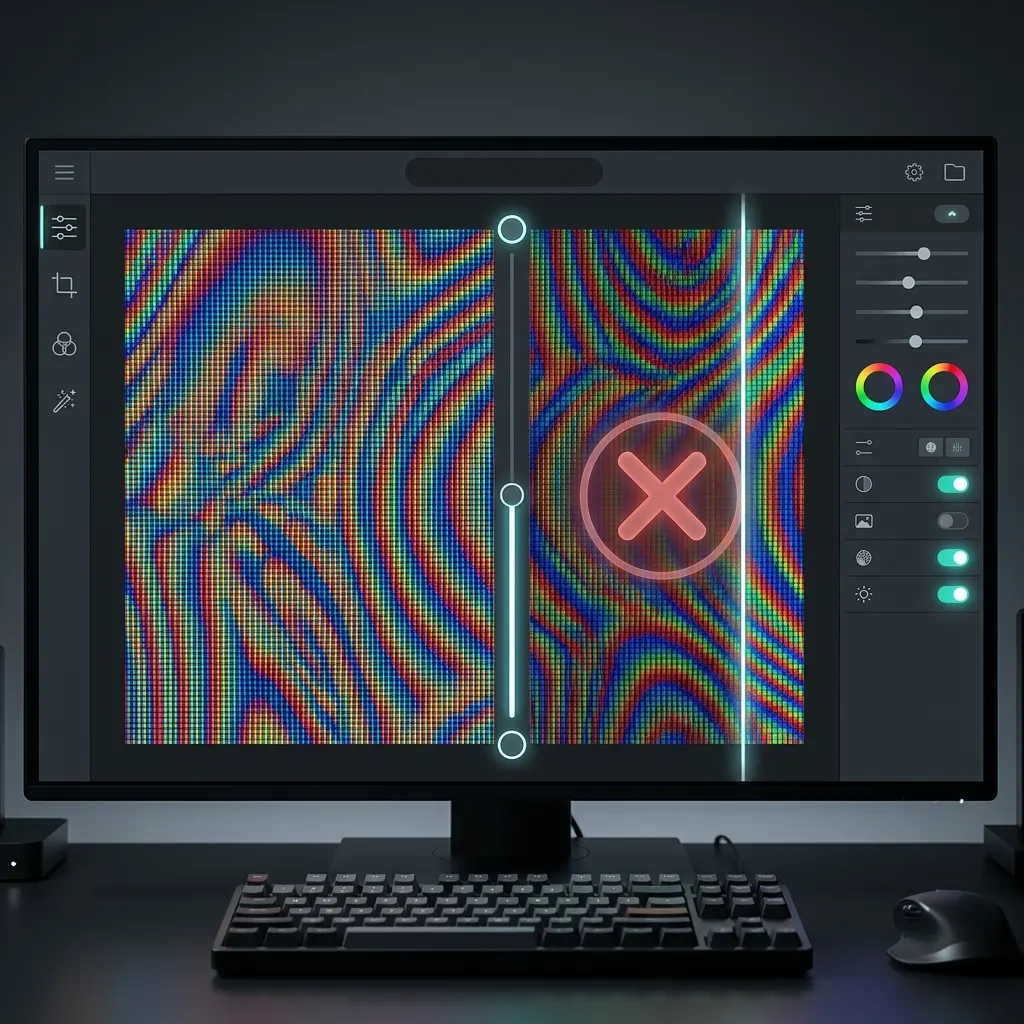
Topaz Photo AI vs Dedicated Moire Removal Tools
To give you a clear picture, here is a direct comparison between Topaz Photo AI and a purpose-built moire removal solution:
| Feature | Topaz Photo AI | MoireRemoval.com AI |
|---|---|---|
| Price | $199 one-time | Free credits available |
| Moire-specific AI model | No | Yes, trained on millions of moire images |
| Screen photo moire | Poor — not designed for it | Excellent |
| Fabric moire | Mild cases only, as side effect | All severity levels |
| Scan descreening | No | Yes |
| Processing | Desktop app (download required) | Online, no installation needed |
| Speed | 10–30 seconds per image | 10–30 seconds per image |
| Noise reduction | Excellent (core feature) | Preserves detail, focused on moire |
| Sharpening / Upscale | Excellent (core feature) | Not included |
| Best for | Noise reduction, sharpening, upscaling | Moire pattern removal |
The comparison is not about which tool is "better" in absolute terms—they solve different problems. Topaz Photo AI is one of the best tools available for noise reduction and sharpening. It simply was not built for moire removal, and using it for that purpose means relying on an unintended side effect rather than a dedicated capability.
When to Use Topaz Photo AI
Topaz Photo AI remains a strong choice in specific scenarios:
- You already own it and have mild fabric moire that might respond to aggressive denoising
- Your primary problem is noise, and moire reduction would be a welcome bonus if it happens
- You prefer offline desktop processing and need noise reduction, sharpening, or upscaling as part of your workflow
- You are combining tools — run Topaz Photo AI for noise and sharpening first, then use a dedicated moire removal tool for the moire pattern
For these use cases, Topaz Photo AI delivers genuine value. Just set realistic expectations about its moire removal capabilities.
When to Use a Dedicated Moire Removal Tool
A purpose-built moire removal tool is the right choice when:
- Screen photography — You photographed a monitor, TV, tablet, or phone screen and see rainbow or wavy patterns. Try the Screen Moire Remover.
- Scanned printed materials — Magazines, newspapers, brochures, or any printed media showing dot patterns after scanning. Use the Descreening Tool.
- Fabric and textile moire — Patterns from clothing, upholstery, or any woven material at moderate to severe levels. The Fabric Moire Fix handles these reliably.
- Consistent, reliable results — When you need moire removal that works predictably across a batch of images, not a side effect that may or may not activate.
- No software to install — Online tools process your images in the browser without requiring a desktop application or subscription.
How to Remove Moire Patterns (Step-by-Step)
If you have moire patterns that need removing right now, here is the fastest path:
- Upload your image — Go to our AI Moire Remover and drag your image into the upload area. Supports JPG, PNG, and WebP.
- AI processes your image — The moire removal model analyzes your image, identifies interference patterns, and removes them while preserving detail and color accuracy. Processing takes 10–30 seconds.
- Download the result — Preview the before/after comparison, then download your clean image at full resolution.
No software installation, no manual filter adjustments, no frequency domain expertise required. The AI model was trained specifically on moire patterns from screens, fabrics, prints, and other common sources.
Other Moire Removal Software Compared
Topaz Photo AI is far from the only tool photographers try for moire removal. Here is how other popular options stack up:
- Adobe Lightroom — Has a dedicated moire adjustment in the Adjustment Brush, making it one of the better options for mild to moderate fabric moire in RAW files. Read our detailed Lightroom moire removal guide.
- Adobe Photoshop — Offers multiple approaches including Camera Raw's moire slider, Gaussian Blur with blending modes, and the Clone Stamp for targeted fixes. See our Photoshop moire removal tutorial.
- GIMP — Free and open-source with frequency separation and Fourier transform plugins for moire removal, though with a steeper learning curve. Our GIMP moire removal guide walks through the process.
- Affinity Photo — Uses FFT Denoise and frequency separation techniques as workarounds since it lacks a dedicated moire tool. See the Affinity Photo moire removal guide.
Each of these tools requires manual work and varying degrees of expertise. AI-based moire removal automates the entire process and typically produces better results, particularly for screen photography moire and scanned document descreening.
FAQ
Does Topaz Photo AI have a moire removal feature?
No. Topaz Photo AI does not include a dedicated moire removal tool or setting. Its three core modules are Denoise, Sharpen, and Upscale. While the denoise function may incidentally reduce very mild moire patterns (interpreting them as noise), this is not a designed feature and is unreliable for actual moire removal.
Is Topaz Photo AI worth $199 for moire removal?
If your only goal is moire removal, no. Topaz Photo AI was not built for this purpose and will not reliably solve moire problems. However, if you also need professional noise reduction, sharpening, and upscaling—and moire is a secondary concern—the $199 investment may be worthwhile for those core features. For moire removal specifically, free dedicated tools like our AI Moire Remover deliver far better results.
What is the best free moire removal tool?
For AI-powered moire removal that works across screen photography, fabric moire, and scanned documents, our free AI Moire Remover consistently delivers the best results. It uses a deep learning model trained specifically on millions of moire pattern examples, which is why it outperforms general-purpose tools that treat moire as a side effect.
Can AI remove moire from screen photos?
Yes. AI models trained specifically on screen photography moire can effectively remove the rainbow-colored interference patterns, wavy distortions, and color banding that appear when photographing screens. General-purpose AI tools like Topaz Photo AI cannot, because their training data focuses on camera sensor noise rather than optical interference. Our Screen Moire Remover is optimized for exactly this type of moire.
How does Topaz Photo AI compare to Lightroom for moire?
Lightroom actually has a dedicated moire reduction slider in its Adjustment Brush and Masking tools, making it more effective than Topaz Photo AI for moire removal. Lightroom allows you to selectively paint moire reduction onto specific areas of RAW files, which gives you targeted control. Topaz Photo AI has no equivalent feature. For a full comparison, read our Lightroom moire removal guide.
Can I use Topaz Photo AI and a moire removal tool together?
Yes, and this is actually a recommended workflow for heavily degraded images. First, use our AI Moire Remover to eliminate the moire interference pattern. Then run the cleaned image through Topaz Photo AI for noise reduction and sharpening. This way, each tool handles what it was designed for, and you get the best possible final result.
The Bottom Line
Topaz Photo AI is a genuinely impressive tool that excels at noise reduction, sharpening, and AI upscaling. It deserves its reputation in the photography community. However, moire removal is simply not what it was built for, and expecting it to solve moire problems will lead to frustration.
If moire patterns are your primary challenge—whether from screen photography, fabric textures, or scanned printed materials—use a tool designed specifically for the task. Our AI Moire Remover is free to try, works in your browser, and handles all common moire types in seconds. For specific use cases, check out the Screen Moire Remover, Descreening Tool, and Fabric Moire Fix.
Use the right tool for the right job. Your images will thank you.
