
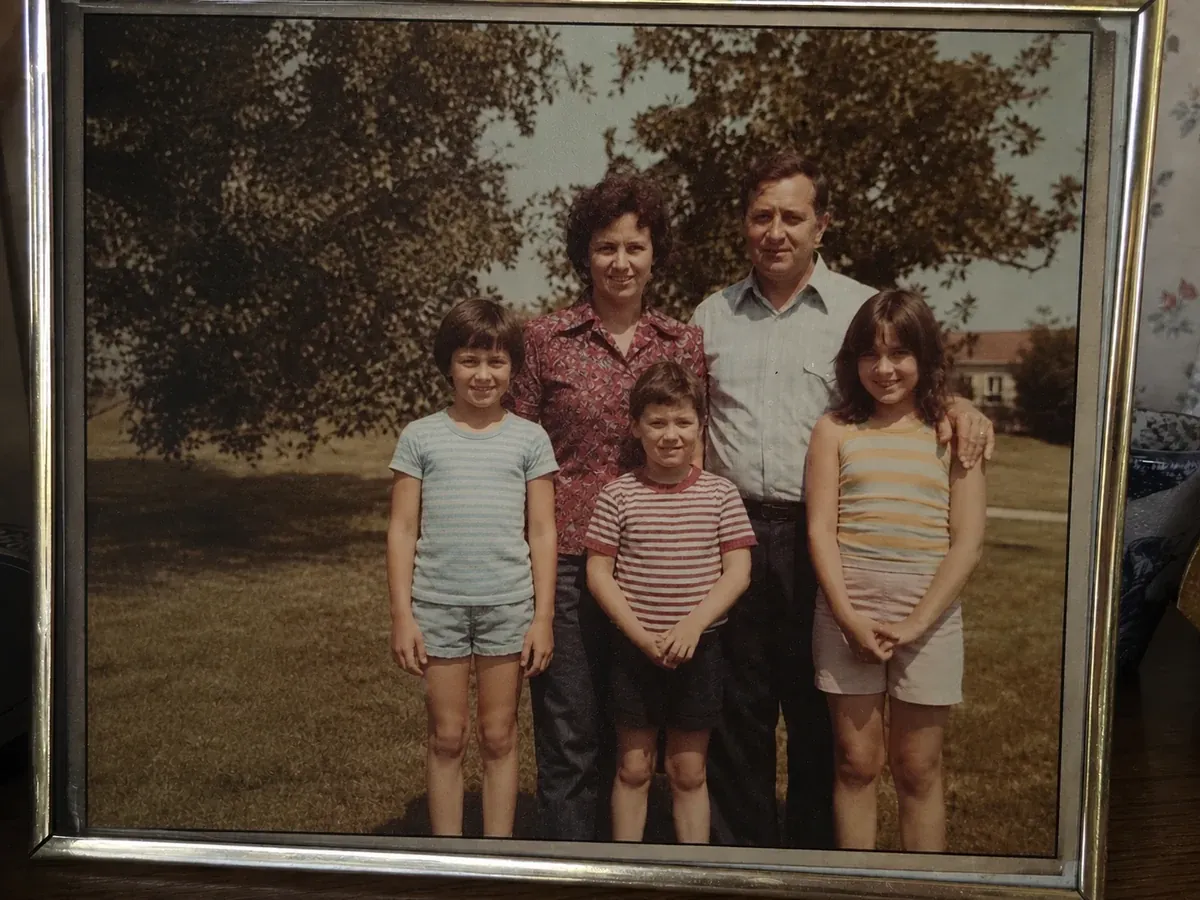
Before
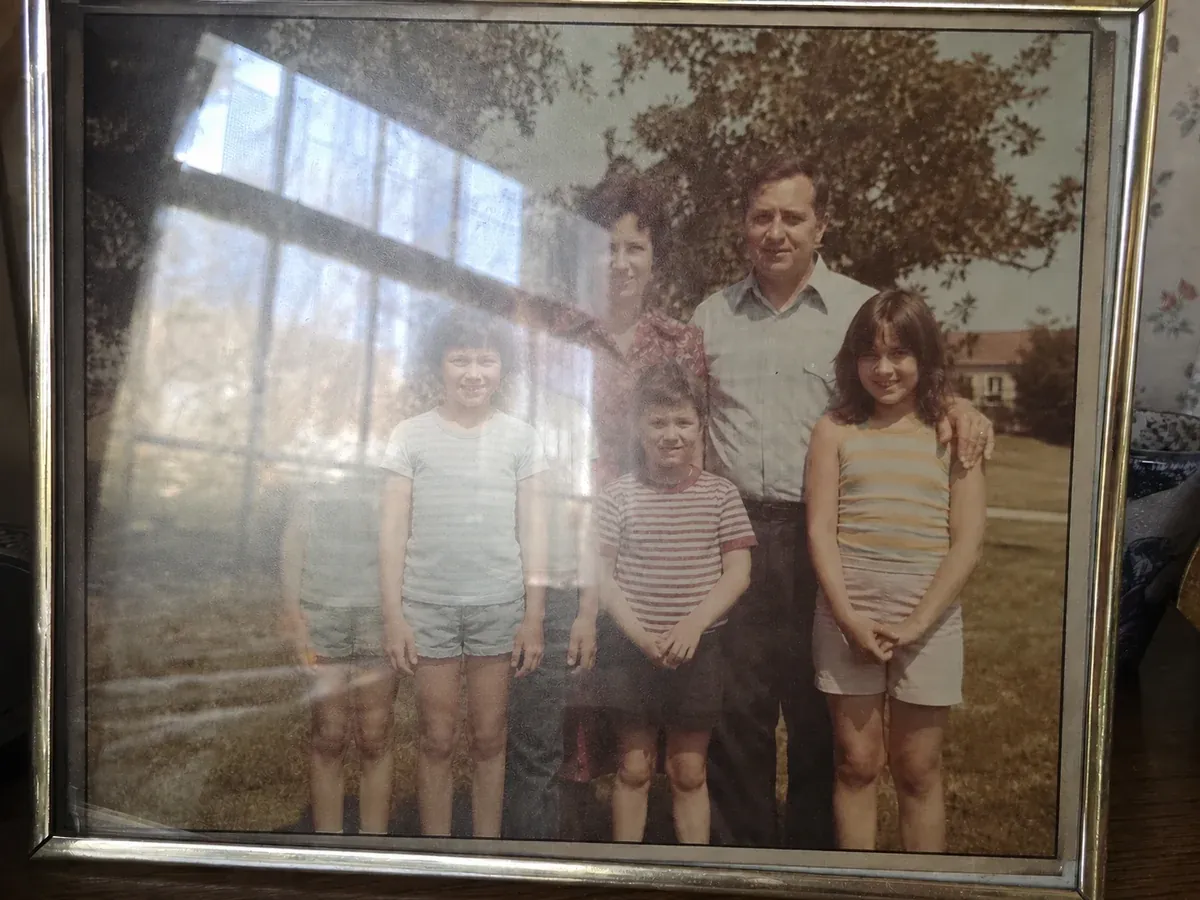
After
Reprinted Old Photo
A printed family photo shot with a phone, a sheet of window light across the middle — the faces come back.
Upload a picture and let AI remove glare from photos in seconds — flash hotspots, sun glare, lens flare, and the glossy sheen that ruins reprinted or scanned pictures. The detail hidden under the bright patch is rebuilt, not smudged over.
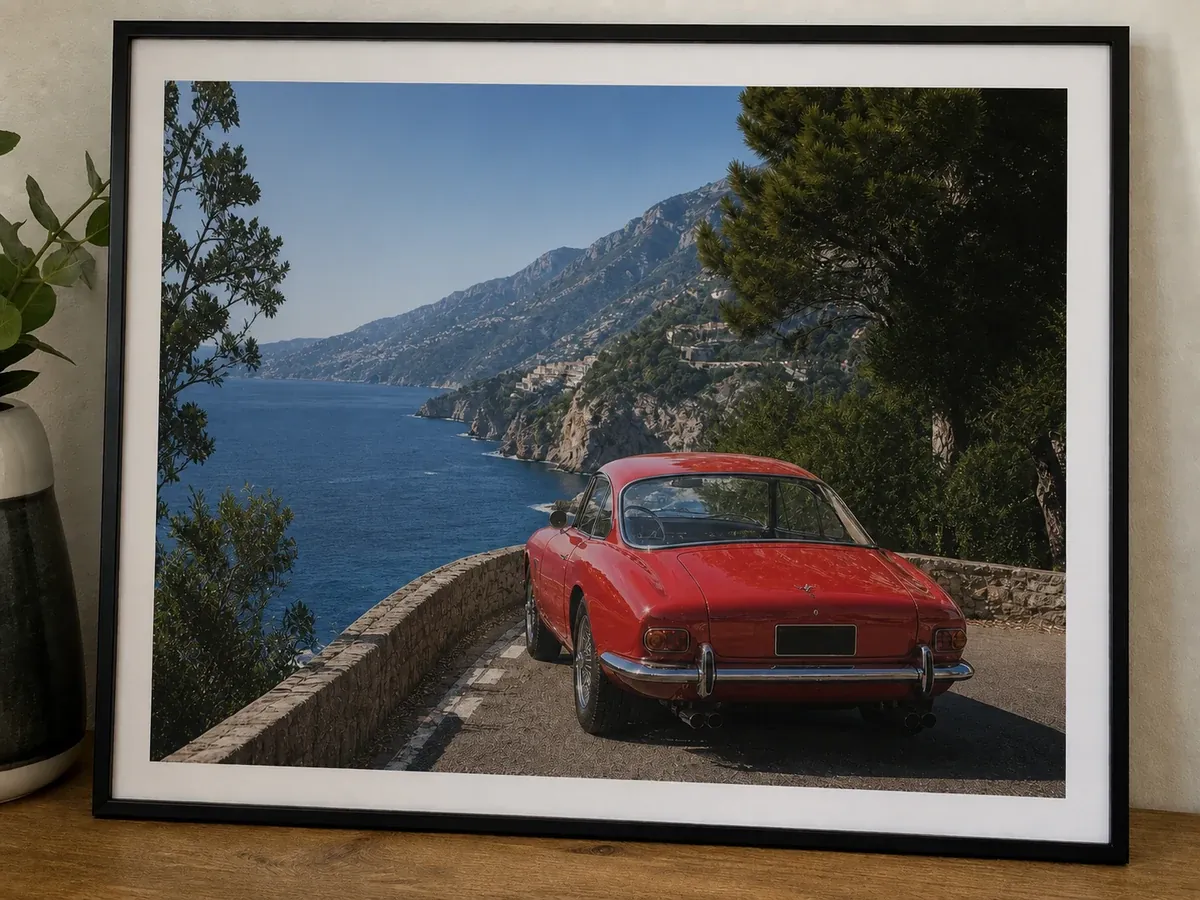
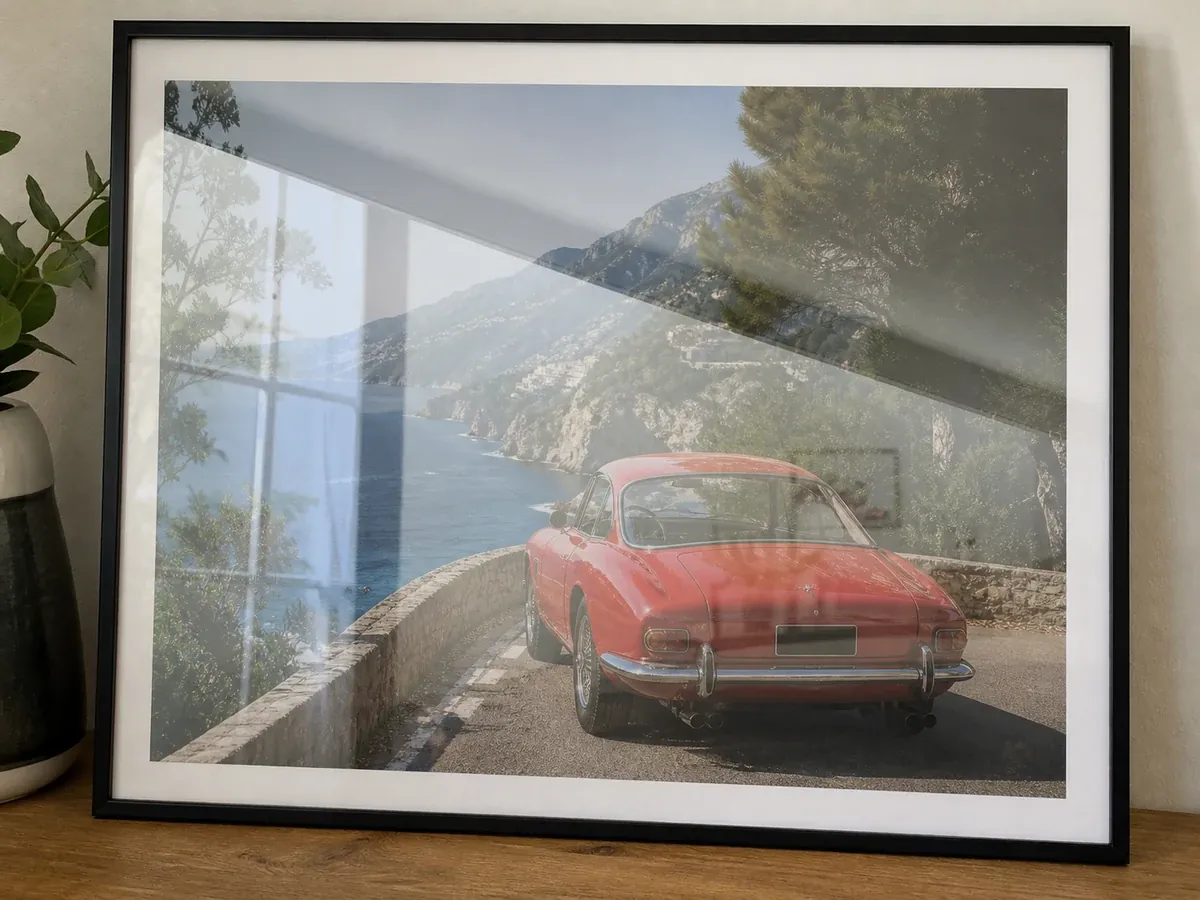
Drop your photo here or click to upload
JPEG, JPG, PNG or WebP image allowed.
No image? Try one of these
Costs 6 credits · No card needed to start
Drag any slider to compare the original with the AI-cleaned result — bright patches disappear while colour, grain, and texture stay untouched.
A printed family photo shot with a phone, a sheet of window light across the middle — the faces come back.
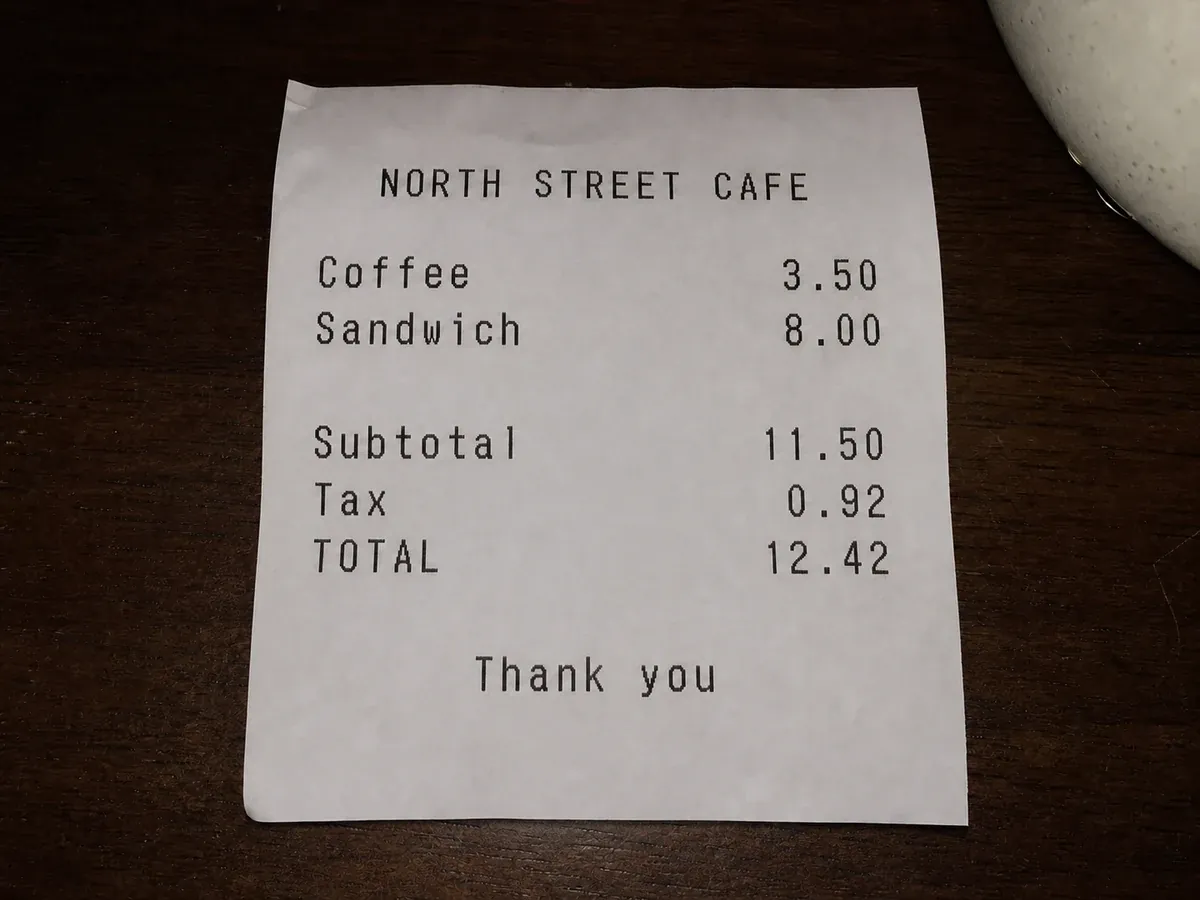
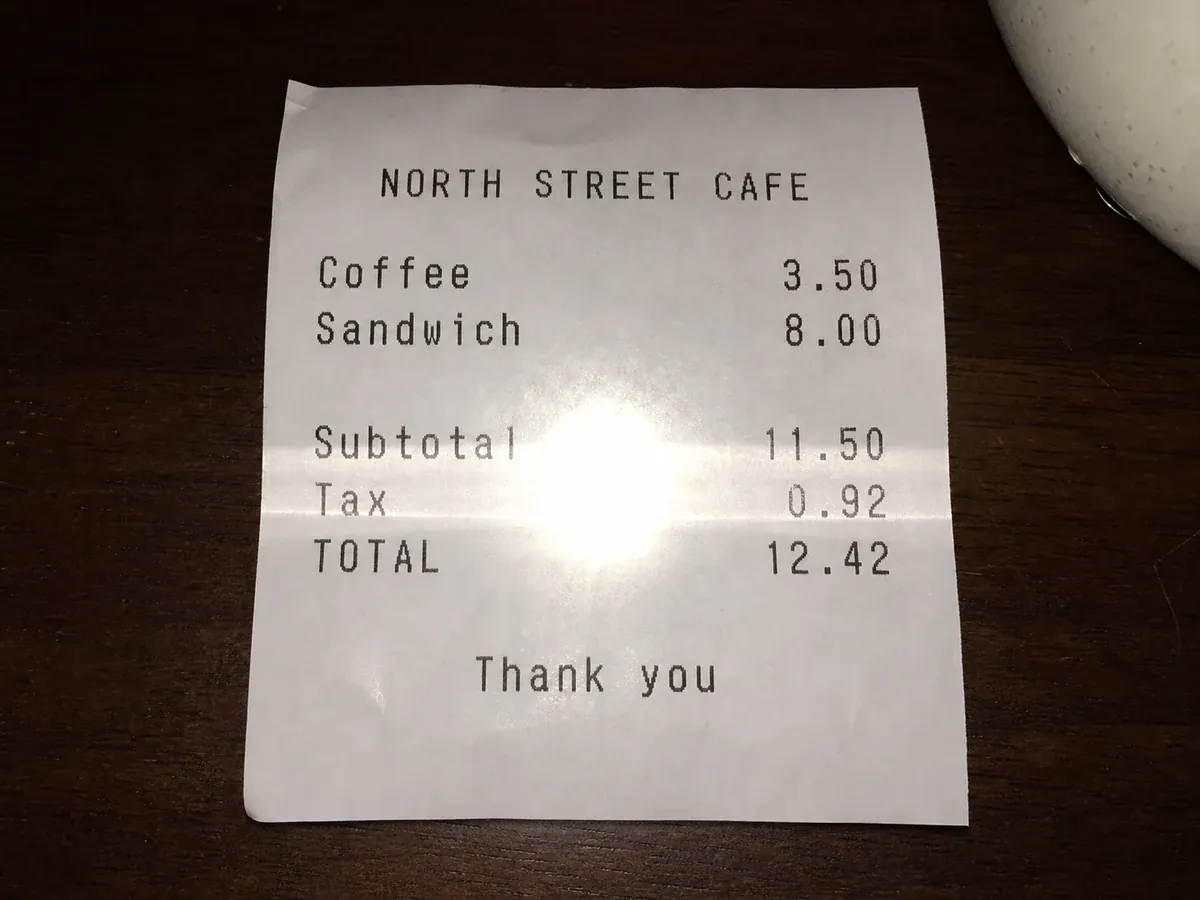
A flash hotspot burning out three lines of a document, cleared so the text reads again.

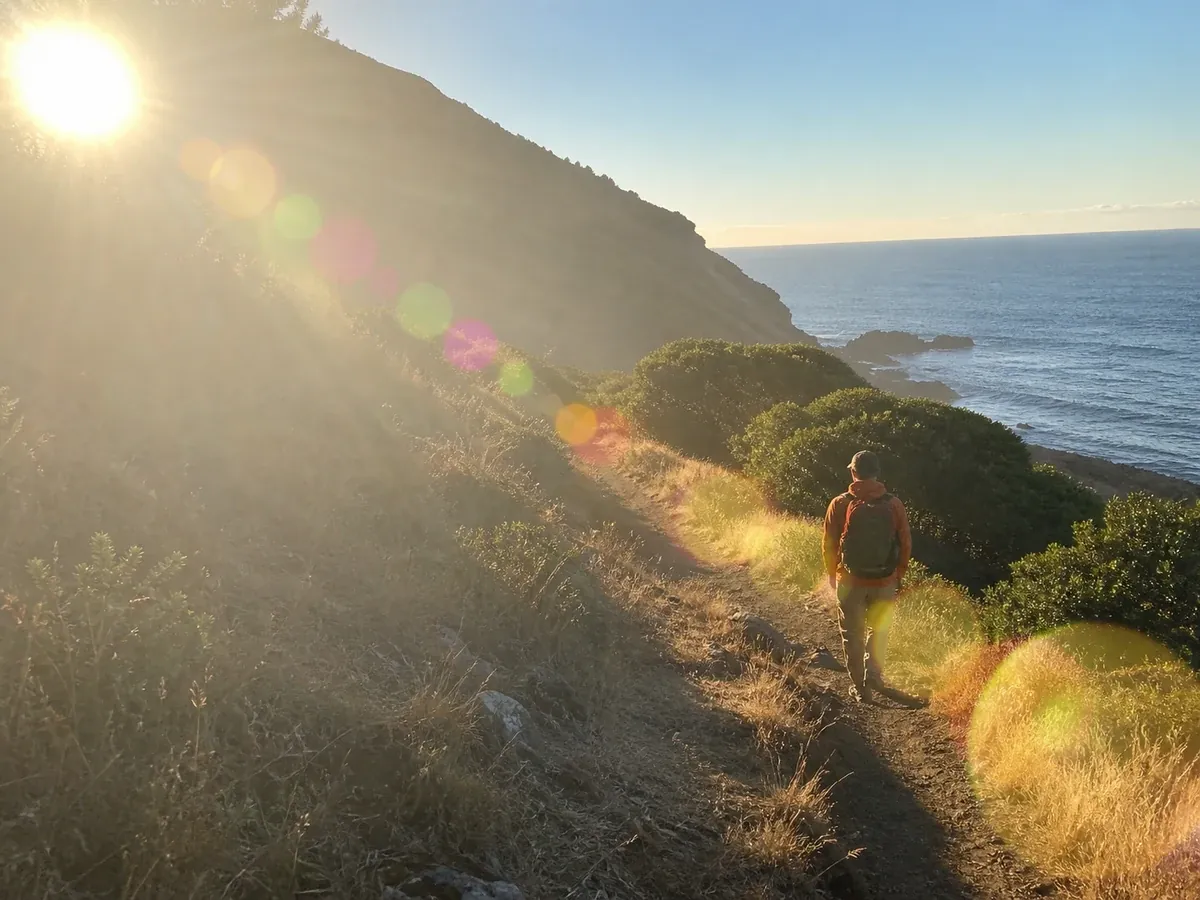
A backlit outdoor shot with haze and coloured flare rings, cleaned without flattening the sky.
Why glare happens
Glare appears when light bounces off a smooth surface straight into your lens and the sensor clips those pixels to near-white — whatever was underneath stops existing in the file. Knowing which of these four situations caused it tells you which cleanup mode to pick.
A flash fired at a shiny surface leaves a hard white hotspot — the most common cause in indoor snapshots and copied paperwork.
Shooting toward the sun washes out contrast with a hazy veil and adds hard streaks on water, metal, and windows.
Ceiling lights, bright windows, and monitors reflect off any smooth surface — laminated paper, phone cases, product boxes.
Photo paper, album sleeves, and picture-frame glass behave like mirrors, which is why reprints and scans pick it up so easily.
The glare people actually get stuck on is rarely a studio portrait — it is a printed family photo, an album page sealed under plastic, or a framed picture nobody wants to take apart. You hold a phone over it and the ceiling light lands as a white sheet across the print. Retaking does not help, because the print itself is the mirror.
The Old Photo / Reprint mode treats that sheet as a reflection sitting on top of the print and rebuilds the picture underneath, keeping the paper grain and faded colour cast that make an old photo look old. If your scan shows a fine dotted or rainbow-striped texture instead of a bright patch, that is halftone interference — the descreening tool handles it.
A phone held over a print almost always catches a lamp or window. The faces underneath come back, paper texture intact.
Adhesive sleeves reflect the whole room. The print underneath is recovered without the sheen bleeding into skin tones.
Shoot the frame as it hangs, then clear room lights, windows, and your own silhouette from the glass.
Open-lid scans and flash copies come out flat and evenly lit, ready for archiving or reprinting.
Glare patterns
A flash spot needs the texture underneath rebuilt; a lens flare needs the background behind it reconstructed; sun haze needs contrast restored across the frame. These are the patterns the AI is trained to separate from the picture.
Hard white circles from a direct flash on foreheads, paper, and walls — the classic light glare in close-range indoor shots.
Coloured rings, starbursts, and the milky veil of a backlit scene. The background is rebuilt and tonal separation restored instead of just darkening the frame.
Oily highlights and flash hotspots on the forehead, nose, and cheekbones, reduced while pores and skin texture stay real.
Bright bands across documents, sheet reflections on glossy prints, and windows or monitors reflecting the room back at the camera.
Clear the most common kinds of photo glare while faces, text, colour, and grain stay exactly as they were.
On photographed prints, album pages, and framed pictures, the AI treats the bright sheet as a surface reflection and rebuilds the content beneath it, keeping paper grain and period colour intact.
Automatic detection handles most pictures; dedicated lens flare, old photo, document, and face modes tell the AI what it is looking at first.
Colour, contrast, grain, and skin texture are preserved around the repair, so a cleaned photo still prints like an untouched one at up to 4K.
An AI glare remover built to reconstruct what the light destroyed, not blur it away — free to try, with uploads deleted automatically.
Instead of dimming the bright area, the AI reconstructs the faces, text, and texture the reflection erased, using the surrounding image as reference.
Automatic, lens flare, old photo, document, and face modes tell the model what kind of reflection it is dealing with.
Tuned for photographed prints, album pages, and flatbed scans, where reflections sit on top of an image that must survive intact.
Document mode restores legibility without repainting or inventing characters, so copied paperwork stays trustworthy.
Face mode removes shine while keeping pores, freckles, and skin texture, so nobody looks airbrushed.
Export at up to 4K, and clean a whole box of scanned prints in one queue instead of one file at a time.
A blown-out highlight has no data left to recover — you have to invent what was there. That is where a trained model beats sliders and clone stamps.
| Method | Best for | Typical effort |
|---|---|---|
| AI photo glare removerFastest | Reprinted and scanned photos, documents, portraits, and product shots. | Upload, pick a mode, download in seconds. |
| Photoshop highlight and shadow sliders | Mild haze where the detail is dim but still present in the file. | Fast, but useless once the highlight clips to pure white. |
| Clone stamp and healing brush | Small spots on flat, easy-to-sample backgrounds such as a plain wall. | Careful sampling and colour matching for every spot. |
| Manual repainting by a retoucher | Severe glare over a face or fine detail rebuilt by hand. | Often an hour or more per image at professional rates. |
| Retake the photo | Scenes you can still access, with light you can move. | Free when possible — impossible for old prints and archives. |
Better inputs
What you feed the AI sets the ceiling. Four habits noticeably improve how faithful the reconstruction is.
Use the camera or scanner file, not a screenshot — compression destroys the faint edge detail the model rebuilds from.
If the face or text is still partly readable at the edge of the bright patch, the repair lands far closer to the truth.
Hold the camera parallel to prints and documents — a straight-on capture keeps the reflection uniform and easier to model.
Do not crop tightly around the bright patch; the surrounding area gives the AI colour and grain to match against.
Removing glare from a photo online takes under a minute — nothing to install.
Drag and drop from a phone, camera, or scanner. JPG, PNG, and WebP up to 10MB are supported.
Leave it on automatic, or pick lens flare, old photo, document, or face.
The model separates the reflection from the picture and rebuilds what was hidden underneath.
Check the before and after slider, choose 2K or 4K, and download your glare-free photo.
Before the next shot
AI cleanup is the fix once the picture exists. When you still control the shot, four small changes stop most of it from reaching the sensor.
Glare follows the angle of reflection — step to one side, or move the lamp, and the bright patch leaves the frame.
For prints, documents, and anything glossy, indirect daylight beats a direct flash every time.
Outdoors, a lens hood or your hand just outside the frame blocks the stray light that causes flare.
Old prints, event photos, and archived paperwork leave one option: fix it afterwards.
Common questions about removing glare, flare, and reflections from pictures.
Upload the picture to this AI glare remover, choose the mode that matches the light — automatic, lens flare, old photo, document, or face — and the AI separates the reflection from the image and rebuilds what was underneath. Preview the result, then download. No Photoshop or retouching skills needed.
New users get free starter credits, so you can remove glare from photos online free with no card and no subscription. Higher resolutions and batch runs use more credits, which you can top up any time.
Yes. To remove glare from photos on iPhone, open this page in Safari or Chrome, tap upload, and pick the shot straight from your camera roll — iOS hands the site a JPEG automatically, so there is no HEIC conversion and nothing to install. The processing runs on our servers, not on the phone, so an iPhone gets the same result as a desktop. Automatic mode handles the usual phone glare (a window reflection, flash bounce off a glossy surface, a bright screen); switch to face or document mode when the glare sits on skin or on a page.
Yes — that is what the Old Photo / Reprint mode is built for. It treats the bright patch as a reflection on the surface of the print and rebuilds what is underneath, keeping the paper grain and faded colour cast intact. If your scan shows fine dotted or rainbow texture instead, that is halftone interference — the descreening tool handles it.
Pick the lens flare mode. It targets the coloured rings, starbursts, and hazy veil from shooting toward the sun, and reconstructs the background behind them. Haze is treated as a contrast problem too, so skies and skin regain separation instead of just getting darker.
Yes. Document mode restores legibility across a flash band without repainting or inventing characters, so a copied contract, receipt, or certificate stays trustworthy. Shoot the page straight on with the flash off for best results.
Use face mode. It reduces oily shine and flash hotspots on the forehead, nose, and cheekbones while preserving skin texture, so the result reads as a well-lit face rather than an airbrushed one.
Flash glare is the hard white hotspot a direct flash leaves on a forehead, a wall, or a sheet of paper, and this flash remover treats it as a reflection rather than an exposure problem. To remove flash from photo files, upload the picture and pick the mode that matches where the hotspot landed: face mode for skin, document mode for paper, automatic for everything else. The AI rebuilds the texture under the hotspot instead of darkening it, which is why a brightness slider in a phone editor can't remove flash from photo backgrounds without leaving a grey smudge. Next time, bounce the flash or shoot with it off.
Yes. For the AI, a patch of bright light and a surface reflection are the same job as glare: a layer of light sitting on top of the scene. Use automatic mode to remove bright light from photo backgrounds — an overexposed window, a lamp bloom, light glare on a glossy table — and to remove reflection from photo surfaces such as a shop window, a framed print, or a shot taken through a car windshield. The model separates that light layer from the picture and rebuilds what it was hiding, rather than just pulling the highlights down. Two limits: an area burned to pure white is reconstructed from its surroundings, so check the preview, and reflections on eyeglass lenses belong to the dedicated glasses tool below.
Lens reflections in a portrait are a different job — the eyes behind the lenses have to be reconstructed too. Use the dedicated glasses glare and reflection remover for that, and come back here for glare anywhere else in the picture.
JPG, PNG, and WebP up to 10MB, with output at up to 4K. For video, extract the affected frame first — and if it also shows rainbow interference from a screen, run it through the video moire remover.
Upload a picture and remove glare from photos in seconds — free starter credits, nothing to install.