
If you're a photographer dealing with moire patterns in your images, you've probably wondered how to remove moire in Lightroom. The good news is that Adobe Lightroom Classic and Lightroom CC both include a dedicated moire removal tool built into the Adjustment Brush. However, as you'll discover in this guide, Lightroom's moire removal has significant limitations—especially when dealing with screen photography or scanned documents.
In this comprehensive tutorial, we'll walk through exactly how to use Lightroom's moire slider, share professional tips for better results, and introduce you to a faster AI-powered alternative that handles even the most stubborn moire patterns.
What is Moire in Lightroom?
In Adobe Lightroom, moire refers to the colored interference patterns (often rainbow-like) that appear in photos of fine repeating patterns — like fabric weaves, screens, or printed halftones. Lightroom provides a dedicated Moire slider inside the Adjustment Brush (keyboard shortcut K), which suppresses these patterns locally where you paint. The slider runs from -100 to +100 (you will only ever use positive values) and works by selectively smoothing high-frequency color information in the brushed area. However, Lightroom's moire removal has real limits — it struggles with screen photography and strong rainbow interference, where an AI-based approach often delivers cleaner results in a fraction of the time.
Need a quick fix? Upload your image to our AI Moire Remover and get results in seconds—no manual brushing required. For screen photography specifically, try our Screen Moire Remover.
Quick answer: The fastest way to remove moire in Lightroom is to use the Adjustment Brush (press K) with the Moire slider set to 50-70, then paint over affected areas. However, Lightroom's moire removal struggles with screen photography and rainbow interference patterns—for those cases, AI-powered tools deliver significantly better results in a fraction of the time. For detailed step-by-step instructions using Lightroom's Adjustment Brush and advanced techniques, read on below.
What Does the Moire Slider Do in Lightroom?
So what does Moire do in Lightroom, exactly? The Moire slider suppresses the colored interference — rainbow bands and wavy fringes — inside the area you paint, by smoothing high-frequency color oscillations while leaving luminance detail alone. It runs from -100 to +100; positive values reduce moire, and 50-70 is the practical starting range for most fabric or screen patterns.
Push it past 80 only for heavy rainbow interference, because the same smoothing that kills the pattern also desaturates and softens the brushed area. And because it is a local effect, it does nothing until you paint a brush or mask — it will not clear moire that covers the whole frame in one move. If that is your situation, understanding what causes moire helps you decide whether to keep brushing or hand the file to an AI moire remover instead.
What is Moire in Photography?
Before diving into the removal process, let's quickly understand what we're dealing with. Moire patterns are interference artifacts that appear as wavy lines, rainbow-colored bands, or repetitive grid patterns in your photos. They occur when fine patterns in your subject (like fabric weaves, screen pixels, or printed halftone dots) interact with your camera sensor's pixel grid.
Common scenarios where moire appears:
- Screen photography: Taking photos of computer monitors, TVs, or smartphone screens
- Fabric photography: Fashion and product photography with fine-textured clothing
- Scanned documents: Scanning magazines, newspapers, or printed photos that contain halftone patterns
For a deeper explanation of why moire happens, check out our guide on understanding moire patterns.
Lightroom's Moire Removal Tool: The Adjustment Brush
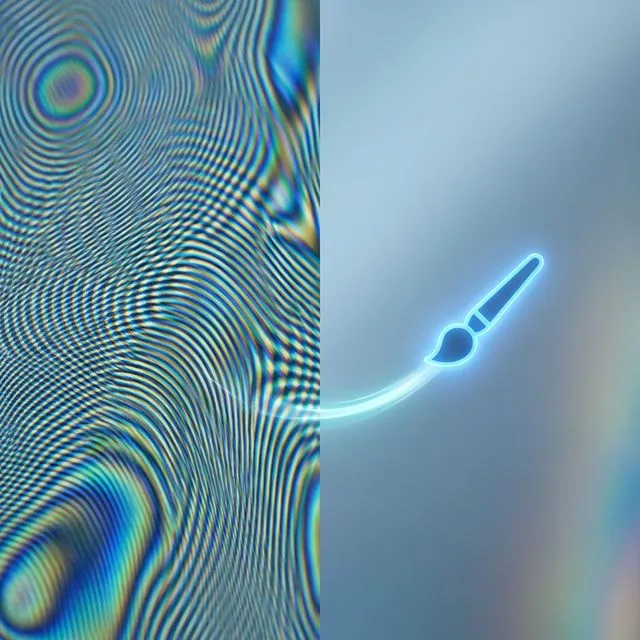
Unlike global adjustments like exposure or white balance, Lightroom's moire removal is a local adjustment tool. This means you manually paint over the areas affected by moire using the Adjustment Brush. Let's break down the complete process.
Lightroom version note: In Lightroom Classic 11+ and the current cloud-based Lightroom, the old Adjustment Brush lives inside the Masking panel — press
Kor click the mask icon, choose Brush, and you'll find the same Moire slider among the mask's effect settings. The steps below apply to both the classic Adjustment Brush and the new Brush mask.
Step 1: Open Your Image in the Develop Module
First, import your image into Lightroom and switch to the Develop module. You can do this by:
- Clicking the "Develop" tab at the top right
- Using the keyboard shortcut D
Make sure you're viewing your image at 100% zoom (press Spacebar and click on the moire-affected area) so you can see the pattern clearly.
Step 2: Select the Adjustment Brush Tool
Locate the Adjustment Brush in the toolbar below the histogram. You can activate it by:
- Clicking the brush icon in the toolbar
- Using the keyboard shortcut K
Once selected, you'll see the brush settings panel appear on the right side.
Step 3: Locate the Moire Slider
Scroll down in the Adjustment Brush settings panel until you find the Moire slider. It's typically located in the "Effects" section, between the Dehaze and Defringe sliders. This slider ranges from -100 to +100, but you'll almost always use positive values for moire removal.
Step 4: Configure Your Moire Reduction Amount
Start with a Moire value of 50. This is a good baseline for most situations. You can always adjust this later:
- 25-50: For mild moire patterns (subtle fabric interference)
- 50-75: For moderate moire (visible screen patterns)
- 75-100: For severe moire (strong rainbow interference)
Pro tip: Don't immediately max out the slider. Higher values can sometimes desaturate colors too much or create unnatural blurring.
Step 5: Adjust Brush Settings for Optimal Results
Before you start painting, configure these brush parameters:
- Size: Use a brush large enough to cover the moire area comfortably (keyboard shortcuts: [ to decrease, ] to increase)
- Feather: Set to 50-70 for smooth transitions
- Flow: Keep at 50-80 for gradual application
- Auto Mask: Enable this if the moire area has defined edges (like a single garment)
Step 6: Paint Over Affected Areas
Now comes the manual work. Click and drag over the areas showing moire patterns. You'll see:
- A red overlay indicating where you're painting (toggle with O key)
- A pin marker showing the adjustment point
Important painting techniques:
- Work in sections rather than trying to cover everything at once
- Use multiple overlapping strokes for even coverage
- Press Alt/Option while painting to erase if you accidentally cover non-moire areas
Step 7: Fine-Tune Your Results
After applying the initial adjustment:
- Click on the pin marker to reactivate the adjustment
- Adjust the Moire slider up or down based on the result
- Check the before/after by pressing \ (backslash) or clicking the switch icon below the image
- Create additional brush adjustments if different areas need different amounts
Step 8: Consider Complementary Adjustments
Sometimes combining the Moire slider with other adjustments yields better results:
- Noise Reduction: Increase slightly (10-20) to smooth out residual patterns
- Sharpness: Reduce by 10-15 if the area looks overly sharp after moire removal
- Saturation: Adjust -5 to -15 if colors look unnaturally vibrant in the treated area
What Do Moire and Defringe Do in Lightroom?
In every local adjustment panel, Moire and Defringe sit side by side — and they fix two different problems:
- Moire removes interference patterns: the wavy, rainbow-colored bands that appear when a fine repeating texture (fabric weave, screen pixels, halftone dots) clashes with your camera sensor's grid. It works by smoothing high-frequency color oscillations in the painted area.
- Defringe removes chromatic aberration fringing: the thin purple or green outlines along high-contrast edges (tree branches against the sky, backlit hair). It targets edge color errors caused by the lens, not interference.
Rule of thumb: rainbow waves across a texture → Moire slider; a colored outline along an edge → Defringe. The two can be combined in a single brush stroke when a fabric shows both artifacts at once.
Advanced Tips for Better Lightroom Moire Removal
Tip 1: Work at 100% Zoom
Always evaluate moire at actual pixel size (100% view or higher). What looks like moire at fit-to-screen zoom might just be normal texture, and you could end up unnecessarily softening important details.
Tip 2: Use Multiple Adjustment Brushes
Don't try to fix everything with one brush setting. Create separate adjustments for:
- Areas with different moire severity
- Different color channels (some moire affects only reds or blues)
- Distinct fabric or screen sections
Tip 3: Combine with Targeted Color Adjustments
If the moire shows up as specific color bands (common in screen photography), try:
- Using the Color adjustment in the same brush to desaturate problem hues
- Targeting specific color ranges with the HSL panel after applying moire reduction
Tip 4: Start Conservative, Build Up
It's easier to add more moire reduction than to undo overapplication. Start with lower values (30-40) and gradually increase rather than starting at 100.
Tip 5: Check at Different Export Sizes
Before finalizing, export a test version at your intended output size. Sometimes moire that's visible at 100% zoom becomes imperceptible when the image is downsized for web use.
Limitations of Lightroom's Moire Removal
While Lightroom's Adjustment Brush is convenient if you're already in a Lightroom workflow, it has several significant drawbacks:
1. Local-Only Adjustment
Lightroom doesn't offer a global moire slider. If your entire image is affected (common with screen photography), you'll need to manually paint over every section, which is tedious and time-consuming.
2. Poor Performance on Screen Photography
The Moire slider was primarily designed for fabric photography in RAW files. When it comes to photos of monitors or phone screens—especially those with rainbow interference patterns—Lightroom often struggles to produce clean results. The algorithm simply wasn't trained for this specific type of moire.
3. Color Desaturation Side Effects
Heavy moire reduction (values above 70) frequently causes unwanted color desaturation. You'll notice the treated areas look washed out or less vibrant than the rest of the image.
4. Loss of Fine Detail
Because Lightroom's moire removal works partly through selective blurring, you'll inevitably lose some sharpness and fine texture in the treated areas. This is particularly noticeable in fabric photography where you want to retain textile detail.
5. No Batch Processing
Each image requires individual manual painting. If you have 50 product photos with the same fabric moire issue, you'll need to repeat the entire process 50 times.
6. Works Best on RAW Files
While you can use the Adjustment Brush on JPEGs, the moire slider is most effective on RAW files where Lightroom has access to full sensor data. JPEG compression often makes moire harder to remove cleanly.
The Faster Alternative: AI Moire Removal

For photographers who need faster, more effective moire removal—especially for screen photography—AI-powered tools offer a superior solution. Here's why:
Automatic Detection and Removal
AI tools are specifically trained on thousands of moire pattern examples. They can:
- Detect moire automatically without manual painting
- Distinguish between moire patterns and legitimate textures
- Process the entire image in seconds instead of minutes
Superior Results on Screen Photography
Unlike Lightroom's algorithm, AI models are trained specifically on screen photography moire, including:
- Rainbow interference patterns from LCD/OLED screens
- Pixel grid artifacts from close-up monitor photos
- Color banding and moiré in video screenshots
Preserved Detail and Sharpness
Advanced AI algorithms use neural networks that can remove moire patterns while preserving:
- Fine texture detail in fabrics
- Text sharpness in screen photos
- Natural color saturation without desaturation side effects
How to Use AI Moire Removal
The process is dramatically simpler than Lightroom:
- Upload your image to an AI moire removal tool
- Select the appropriate mode:
- Screen Moire Remover for photos of monitors, TVs, and phone screens
- Fabric Moire Fix for clothing and textile photography
- Descreening Tool for scanned magazines and printed materials
- Wait 5-10 seconds while the AI processes
- Download your moire-free result
No manual brushing. No parameter tweaking. Just upload and download.
Batch Processing Capability
Many AI tools support batch processing, meaning you can upload 10, 50, or even 100 images at once and have them all processed automatically. This is invaluable for:
- E-commerce product photography
- Fashion lookbook shoots
- Real estate photography with TV screens
- Documentation projects involving screen captures
When to Use Lightroom vs AI Tools
Both methods have their place. Here's when each makes sense:
Choose Lightroom When:
- You're already working in a Lightroom workflow with RAW files
- The moire is very mild and limited to small areas
- You need to make other adjustments in Lightroom anyway
- You have a Lightroom subscription and want to keep everything in one tool
- The moire is fabric-based and not screen-based
Choose AI Tools When:
- You're dealing with screen photography moire (monitors, TVs, phones)
- The moire covers large areas or the entire image
- You need to process multiple images with the same moire issue
- Lightroom's moire slider isn't producing acceptable results
- You want the fastest possible workflow (seconds vs. minutes)
- You're working with scanned documents or printed materials
Combining Both Methods
For the best results, consider a hybrid workflow:
- Use AI moire removal first to handle the bulk of the pattern
- Import the cleaned image into Lightroom for final color grading and exposure adjustments
- Use the Adjustment Brush only if minor residual moire remains in specific spots
This approach gives you the speed and effectiveness of AI while maintaining your familiar Lightroom color workflow.
Preventing Moire When Shooting
The best moire removal is prevention. Try these shooting techniques:
For Screen Photography:
- Change your shooting angle by 2-5 degrees
- Adjust the distance to the screen (closer or farther)
- Modify screen brightness and refresh rate
- Use a wider aperture (f/2.8-f/4 instead of f/8-f/11)
For Fabric Photography:
- Slightly defocus your lens if detail isn't critical
- Change your focal length (try both wider and longer)
- Adjust the angle of the fabric relative to the camera
- Use soft, diffused lighting instead of hard directional light
General Tips:
- Shoot in RAW format for maximum post-processing flexibility
- Avoid focal lengths and apertures that emphasize fine detail
- Test a few frames and check at 100% zoom before shooting the entire series
Frequently Asked Questions
Where is the Moire slider in Lightroom?
Open the Develop module, press K to activate the Adjustment Brush (in Lightroom Classic 11+ and cloud-based Lightroom that opens the Masking panel — choose Brush), then scroll to the bottom of the brush's effect settings: the Moire slider sits between Dehaze and Defringe. If you are hunting for where Moire is in Lightroom and cannot find it, that is the catch — it is not in the Basic or Detail panels at all, only inside local adjustments (Brush, Linear and Radial masks), so it stays hidden until a brush or mask is active. Lightroom Mobile does not include it.
Can Lightroom remove moire from JPEGs?
Yes, Lightroom can remove moire from JPEG files using the same Adjustment Brush tool, but the results are noticeably less effective than with RAW files. JPEGs have already been processed and compressed by your camera, which means color information has been discarded and the moire pattern is "baked in" more permanently. You'll have less latitude for adjustment and may see more color banding artifacts, especially at higher slider values. The moire slider works by manipulating color and luminance data, which is more limited in 8-bit JPEGs compared to 12-14 bit RAW files. For JPEG moire removal, AI tools often produce superior results since they use pattern recognition algorithms that don't rely on RAW sensor data.
Is there a global moire slider in Lightroom?
No, Lightroom does not have a global moire slider that applies to the entire image with one click. Moire reduction is only available through the Adjustment Brush, which is a local adjustment tool requiring manual painting over specific affected areas. This design choice was made because moire typically affects only certain parts of an image (like a garment or screen area), so Adobe implemented it as a targeted correction tool. If your entire image is affected by moire—common with screen photography or scanned documents—you'll need to manually paint over every section, which can be tedious and time-consuming. This is a significant limitation compared to AI moire removal tools that process the entire image automatically.
Why isn't Lightroom removing my screen moire?
Lightroom's moire slider was primarily designed for fabric moire in RAW files, not screen photography. Screen moire—especially the rainbow interference patterns from LCD, LED, and OLED displays—involves complex multi-channel color interference that occurs at very specific spatial frequencies. Lightroom's algorithm uses basic frequency-based reduction that works well for predictable fabric weave patterns but struggles with the dynamic, multi-colored interference from digital screens. The tool simply wasn't trained or optimized for this specific type of moire. Additionally, screen moire often covers large areas or the entire image, making manual brush painting impractical. For screen photography moire, try an AI screen moire remover instead, which uses neural networks specifically trained on thousands of screen photo examples.
What's the best Lightroom moire slider setting?
The optimal Lightroom moire slider setting depends on severity, but start with 50 as a baseline and adjust based on results. For mild moire (subtle fabric interference), values of 25-40 are typically sufficient. For moderate moire (visible screen patterns), use 50-70. For severe moire (strong rainbow bands), you may need 75-90. However, values above 80 often cause excessive softening, loss of fine texture detail, and noticeable color desaturation in the treated areas. It's better to use moderate values (40-60) with multiple overlapping brush applications than one extreme application at 100. Check your results at 100% zoom to ensure you're not over-processing and destroying important detail.
Does Lightroom Mobile have moire removal?
Unfortunately, Lightroom Mobile does not include the moire slider as of 2026. While Lightroom Mobile includes the Selective Adjustment tool (similar to the desktop Adjustment Brush), the moire reduction slider specifically is only available in Lightroom Classic on desktop. This is a significant limitation for mobile photographers who shoot fashion, screens, or other moire-prone subjects. If you need moire removal on mobile devices, you have two options: either transfer your photos to Lightroom Classic on desktop, or use a web-based AI moire removal tool directly from your phone's browser. AI tools work particularly well on mobile since they're fully automatic and don't require the precise brushing that would be difficult on a small touchscreen.
Can I batch process moire in Lightroom?
No, Lightroom does not support batch processing for moire removal. Since moire reduction requires manually painting with the Adjustment Brush on specific affected areas in each image, there's no way to sync or batch apply these adjustments to multiple images. Even if you have 50 product photos with the same garment showing the same moire pattern, you'll need to repeat the entire manual brushing process 50 times. You can copy and paste other adjustments (exposure, color grading) across images, but brush strokes and their positions don't transfer because moire locations vary between shots. This is one of AI moire removal tools' biggest advantages—they can process 10, 50, or 100 images simultaneously in batch mode, making them ideal for e-commerce, fashion photography, or any high-volume work.
Conclusion
Lightroom's Adjustment Brush with moire slider is a useful tool for photographers already working in a Lightroom RAW workflow, particularly for mild fabric-based moire. The local adjustment approach gives you control over exactly which areas are treated.
However, for screen photography, scanned documents, severe moire patterns, or situations requiring batch processing, AI-powered moire removal tools offer dramatically faster and more effective results. They're specifically trained to handle the types of moire that Lightroom struggles with.
For the best results:
- Try Lightroom first if you're already in that workflow and dealing with mild moire
- Switch to AI tools for screen photography, severe patterns, or when Lightroom isn't working
- Consider a hybrid workflow using both tools
Ready to remove moire in seconds instead of minutes? Try our AI Moire Remover for automatic, intelligent moire removal without manual brushing.
Related Resources
- Complete guide to fixing moire patterns - Compare all methods
- Understanding moire patterns - Learn what causes moire
- Screen Moire Remover - AI tool for screen photography
- Fabric Moire Fix - Specialized for textile photography
- Descreening Tool - For scanned printed materials
This guide was written by the Moire Lab team — image processing specialists who have helped remove moire patterns from over 100,000 photos since 2023. All methods are tested with real-world images across multiple devices and software versions.
