
GIMP is the world's most popular free photo editor, and if you're dealing with moire patterns in your images, it's natural to look for a solution within this powerful open-source tool. While GIMP doesn't have a one-click moire removal button, it offers several approaches—from built-in filters to powerful third-party plugins—that can tackle moire patterns effectively.
In this guide, we'll walk through three methods to remove moire in GIMP, from the simplest built-in option to the most powerful plugin-based approach. We'll also compare GIMP's capabilities against Photoshop and AI tools so you can choose the right solution for your specific situation.
Need a quick fix? Upload your image to our AI Moire Remover and get results in seconds—completely free for basic use, no software installation needed. For specific moire types, try our Screen Moire Remover or Descreening Tool.
Quick answer: The most effective free method to remove moire in GIMP is the G'MIC Descreen plugin, which uses Fourier Transform analysis to identify and remove periodic patterns like moire. It's especially powerful for scanned documents and printed materials. For a simpler approach, GIMP's built-in Despeckle filter handles mild moire. However, for screen photography moire (rainbow interference from monitors) or batch processing needs, AI-powered tools deliver significantly better results. Read on for complete step-by-step instructions.
Does GIMP Have a Built-in Moire Removal Tool?
The short answer: not exactly. GIMP doesn't include a dedicated moire filter or slider like Photoshop's Camera Raw moire reduction or Lightroom's Adjustment Brush. However, GIMP provides several general-purpose filters that can be repurposed for moire removal, and its open plugin architecture allows third-party tools like G'MIC to fill the gap.
Here's what GIMP offers out of the box:
- Despeckle filter: Reduces noise and minor periodic patterns
- Gaussian Blur: Can be applied selectively to moire areas
- Selective Gaussian Blur: Edge-aware blurring that preserves some detail
- Wavelet Decompose (via G'MIC): Advanced frequency-based editing
And with the G'MIC plugin installed:
- Fourier Transform Descreen: The most powerful moire removal option available in GIMP
- Wavelet Decompose: Granular frequency-level editing for surgical moire removal
Method 1: Despeckle Filter (Simplest, Built-in)
GIMP's Despeckle filter is the quickest approach for mild moire patterns. It works by analyzing local pixel neighborhoods and smoothing out small variations—which can include low-intensity moire.
When to Use Despeckle
- Mild, low-contrast moire patterns
- Quick fixes where perfect results aren't critical
- When you can't install additional plugins
- As a first pass before more advanced techniques
Step-by-Step Process
Step 1: Open Your Image
Launch GIMP and open the image with moire patterns via File > Open. Zoom to 100% (View > Zoom > 1:1) on the moire-affected area so you can clearly see the pattern.
Step 2: Duplicate the Layer
Go to Layer > Duplicate Layer to create a working copy. This preserves your original for comparison and undo safety.
Step 3: Apply the Despeckle Filter
Navigate to Filters > Enhance > Despeckle. You'll see several parameters:
- Adaptive: Check this box. It makes the filter respond to local image content rather than applying uniform smoothing.
- Recursive: Check this for stronger moire. It applies the filter multiple times internally.
- Radius: Start with 3-5. Higher values smooth more aggressively but destroy more detail.
- Black Level / White Level: Leave at defaults (0 and 255) unless the moire is concentrated in specific tonal ranges.
Step 4: Preview and Adjust
Enable the Preview checkbox to see the effect in real-time on your image. Adjust the Radius parameter while watching the moire area:
- Too low (1-2): Moire barely affected
- Sweet spot (3-5): Moire reduced, detail mostly preserved
- Too high (6+): Moire gone but image noticeably blurred
Step 5: Apply and Evaluate
Click OK to apply. Toggle the duplicate layer's visibility (click the eye icon) to compare before and after. If the result is too aggressive, reduce the layer opacity to blend with the original.
Limitations of Despeckle
- Weak against strong moire: Can't handle pronounced patterns from screens or printed materials
- Global application: Affects the entire image, not just moire areas (unless you use a selection first)
- Detail loss: Any radius effective enough to remove visible moire will noticeably soften the image
- No frequency targeting: Doesn't distinguish moire frequencies from image detail frequencies
Method 2: G'MIC Descreen Plugin (Most Powerful)
The G'MIC (GREYC's Magic for Image Computing) plugin transforms GIMP from a basic moire handler into a serious descreen tool. Its Fourier Transform-based Descreen filter is specifically designed to remove periodic patterns from scanned printed materials—and it works excellently on moire patterns of all types.
Installing G'MIC for GIMP
G'MIC is free and actively maintained. Here's how to install it:
Windows:
- Download the G'MIC-Qt plugin for GIMP from the official G'MIC website
- Run the installer—it will auto-detect your GIMP installation
- Restart GIMP. G'MIC appears under Filters > G'MIC-Qt
macOS:
- Download the macOS version from the G'MIC website
- Copy the plugin file to your GIMP plugins directory (typically
~/Library/Application Support/GIMP/2.10/plug-ins/) - Restart GIMP
Linux (Ubuntu/Debian):
sudo apt install gimp-gmicRestart GIMP after installation.
Using the Descreen Filter
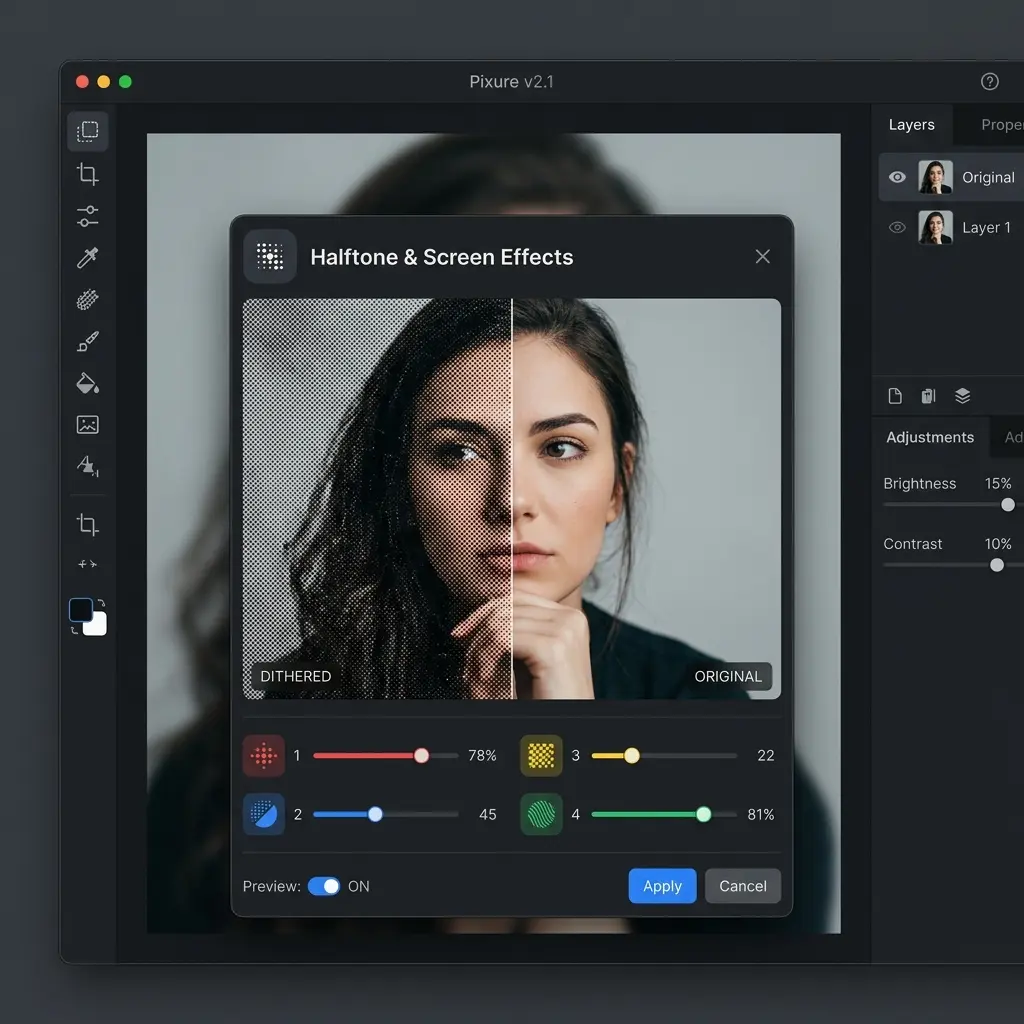
Step 1: Open G'MIC
With your image open, go to Filters > G'MIC-Qt. This opens the G'MIC interface with hundreds of filters organized in categories.
Step 2: Navigate to the Descreen Filter
In the G'MIC filter tree, navigate to: Repair > Smooth [Descreen]
Alternatively, use the search box at the top and type "descreen" to find it quickly.
Step 3: Configure Descreen Parameters
The Descreen filter has several key parameters:
- Smoothness: Controls how aggressively the filter removes periodic patterns. Start with 1.0-2.0 for mild moire, 3.0-5.0 for strong halftone patterns.
- Anisotropy: Controls directional bias. Keep at 0 for uniform moire, increase for directional patterns.
- Noise Scale: The spatial frequency of the pattern to target. For fine moire, use lower values (4-8). For coarse halftone dots, use higher values (8-16).
- Iterations: Number of processing passes. 1-2 is usually sufficient; more can introduce softness.
Step 4: Preview and Fine-tune
Click the Preview button to see the effect on your image. The G'MIC preview is interactive—adjust parameters and click Preview again until the moire disappears without excessive softening.
Recommended starting parameters for common scenarios:
| Moire Type | Smoothness | Noise Scale | Iterations |
|---|---|---|---|
| Scanned magazine | 2.0-3.0 | 8-12 | 1-2 |
| Scanned newspaper | 3.0-5.0 | 10-16 | 2 |
| Fabric photography | 1.0-2.0 | 4-8 | 1 |
| Screen photography | 1.5-3.0 | 4-8 | 1-2 |
Step 5: Apply
Click OK to apply the filter. G'MIC will process the image (this may take 10-30 seconds depending on image size and parameters).
Alternative G'MIC Method: Fourier Transform
For advanced users, G'MIC also offers direct Fourier Transform manipulation:
- In G'MIC, navigate to Spectral > Bandpass (or search "fourier")
- This converts your image to the frequency domain where moire patterns appear as distinct peaks
- You can manually identify and suppress moire frequencies
- This gives more precise control but requires understanding of frequency domain concepts
Limitations of G'MIC Descreen
- Requires plugin installation: Not available out of the box
- Learning curve: Parameter tuning takes practice to get optimal results
- Processing time: Larger images can take 30+ seconds per application
- Batch processing: While G'MIC supports command-line batch mode, it's complex to set up
- Screen moire challenge: Works best on printed halftone patterns; rainbow interference from screens is harder to handle
Method 3: Gaussian Blur + Layer Masking (Quick Fix)
This is the simplest approach for localized moire, using only GIMP's built-in tools.
When to Use This Method
- Moire limited to small, well-defined areas
- Quick edits where you don't need plugin installation
- As a finishing touch after Despeckle or G'MIC processing
Step-by-Step Process
Step 1: Duplicate Your Layer
Layer > Duplicate Layer to create a working copy.
Step 2: Apply Gaussian Blur
On the duplicate layer, go to Filters > Blur > Gaussian Blur. Set the radius to 2.0-4.0 pixels—just enough to eliminate the visible moire pattern. Enable Preview to check.
Step 3: Add a Black Layer Mask
Right-click the blurred layer in the Layers panel and select Add Layer Mask. Choose Black (full transparency). The blurred layer is now completely hidden.
Step 4: Paint White to Reveal
Select the Paintbrush Tool (P), set foreground color to white, choose a soft-edged brush, and paint over the moire-affected areas on the mask. This selectively reveals the blurred version only where you need it.
Tips for effective masking:
- Use a large, soft brush for broad areas
- Reduce brush opacity (50-70%) for gradual blending at edges
- Zoom in for precise work around detail boundaries
- Use X to swap between white (reveal) and black (hide) for corrections
Step 5: Adjust Blend
Fine-tune the result by adjusting the blurred layer's Opacity slider. Values between 65-85% often produce the most natural-looking blend between the blurred moire areas and the sharp original.
GIMP vs Photoshop vs AI: Moire Removal Compared
How does GIMP stack up against paid alternatives? Here's an honest comparison:
| Feature | GIMP (Free) | Photoshop (Paid) | AI Tools |
|---|---|---|---|
| Dedicated moire tool | ❌ No | ✅ Camera Raw slider | ✅ Automatic |
| Best method | G'MIC Descreen | Camera Raw Filter | Upload & download |
| Time per image | 5-15 min | 2-10 min | 5-15 seconds |
| Fabric moire quality | ★★★☆☆ | ★★★★☆ | ★★★★★ |
| Screen moire quality | ★★☆☆☆ | ★★☆☆☆ | ★★★★★ |
| Scan/halftone quality | ★★★★☆ | ★★★☆☆ | ★★★★★ |
| Batch processing | ⚠️ CLI only | ⚠️ Actions | ✅ Built-in |
| Learning curve | High | Medium | None |
| Cost | Free | Subscription | Free tier available |
| Runs offline | ✅ Yes | ✅ Yes | ❌ Needs internet |
Key takeaways:
- GIMP excels at scanned material descreening with G'MIC—arguably better than Photoshop for this specific use case
- Photoshop wins for fabric moire with its convenient Camera Raw slider
- AI tools dominate screen photography moire where both GIMP and Photoshop struggle
- GIMP is the only truly free option for offline moire removal
The Faster Alternative: AI Moire Removal
For users who need quick results, consistent quality, or handle screen photography moire—areas where GIMP struggles most—AI-powered moire removal offers a compelling alternative.
Why Consider AI Tools Over GIMP?
- Zero learning curve: Upload an image, get a clean result. No filter parameters, no plugins, no layer masking.
- Screen photography specialist: AI models are specifically trained on thousands of screen photography examples with rainbow interference—the exact moire type that GIMP handles worst.
- Batch processing: Upload dozens of images at once. No scripting required.
- Consistent results: The same quality every time, regardless of your experience level.
How to Use AI Moire Removal
- Choose the right tool for your moire type:
- Screen Moire Remover — photos of monitors, TVs, phone screens
- Fabric Moire Fix — clothing and textile photography
- Descreening Tool — scanned magazines, newspapers, printed photos
- Moire Pattern Remover — general purpose moire removal
- Select your output resolution (1K, 2K, or 4K)
- Upload your image (drag and drop or click to browse)
- Wait 5-15 seconds for AI processing
- Preview the before/after comparison and download
When GIMP Still Makes Sense
AI tools aren't always the answer. Stick with GIMP when:
- You need to work entirely offline (no internet required)
- You're processing sensitive or confidential images you can't upload
- The moire is very mild and Despeckle handles it in seconds
- You want maximum control over exactly how the correction is applied
- You're already in a GIMP workflow and want to stay there
Tips to Prevent Moire When Shooting
The best solution is always prevention. Here are practical techniques to avoid moire at capture time:
Camera Techniques
- Change your angle: Shift the camera 2-5 degrees from straight-on—this breaks the pattern alignment
- Adjust distance: Move closer or farther from patterned subjects
- Open your aperture: Wider apertures (f/2.8-f/5.6) resolve less fine detail, reducing pattern interference
- Try a different focal length: Sometimes switching from 50mm to 60mm eliminates the interference
For Scanning
- Scan at higher resolution: Higher DPI gives more data for post-processing
- Use "descreen" mode: Some scanners (Epson, Canon) have built-in descreen options
- Angle the material slightly: A 1-2 degree rotation can break halftone alignment
For Screen Photography
- Adjust screen brightness: Higher brightness often reduces moire intensity
- Use a polarizing filter: Reduces reflection-based interference
- Change screen display settings: Different refresh rates or resolution scaling can help
For a deeper dive, read our complete guide to fixing moire patterns.
Frequently Asked Questions
Is GIMP good for moire removal?
GIMP is a capable but not ideal tool for moire removal. With the G'MIC Descreen plugin installed, GIMP becomes quite effective at removing halftone patterns from scanned printed materials—in fact, G'MIC's Descreen filter is one of the best free tools available for this specific task. However, GIMP lacks a dedicated moire removal slider (unlike Photoshop or Lightroom), which means you'll rely on general-purpose filters or plugins that require more setup and skill. For screen photography moire (rainbow patterns from monitors), GIMP struggles regardless of which method you use. The honest assessment: GIMP is excellent for descreening scanned documents, adequate for fabric moire with effort, and poor for screen photography moire.
How do I install the G'MIC descreen plugin for GIMP?
G'MIC is a free, open-source plugin available for Windows, macOS, and Linux. On Windows, download the installer from gmic.eu and run it—the installer auto-detects your GIMP installation. On macOS, download the plugin file and copy it to your GIMP plugins folder (typically ~/Library/Application Support/GIMP/2.10/plug-ins/). On Linux, use your package manager (e.g., sudo apt install gimp-gmic on Ubuntu). After installation, restart GIMP and you'll find G'MIC under Filters > G'MIC-Qt. The Descreen filter is located at Repair > Smooth [Descreen] in the G'MIC filter tree.
Can GIMP remove rainbow moire from screen photos?
GIMP performs poorly on rainbow moire from screen photography. The Despeckle filter is too weak for this type of pattern, and even G'MIC's Descreen filter—which excels at printed halftone removal—struggles with the complex multi-channel color interference that LCD, LED, and OLED screens create. Screen moire involves dynamic spatial frequencies that vary across the image, making it fundamentally different from the predictable periodic patterns that GIMP's tools target. For screen photography moire, AI-powered tools specifically trained on this pattern type deliver dramatically better results. Try our Screen Moire Remover for this use case.
What's the difference between Despeckle and G'MIC Descreen?
GIMP's built-in Despeckle filter works by analyzing local pixel neighborhoods and smoothing small variations—it's a general noise reduction tool that happens to help with mild moire. G'MIC's Descreen filter is fundamentally different: it uses Fourier Transform analysis to convert your image into the frequency domain, identify the specific spatial frequencies where periodic patterns (like moire or halftone dots) exist, and selectively suppress them while preserving other image content. This makes Descreen dramatically more effective for strong periodic moire and halftone patterns, but it requires the G'MIC plugin installation and more parameter knowledge.
Can I batch process moire removal in GIMP?
GIMP supports batch processing through its Script-Fu console and Python-Fu interface, but setting up batch moire removal is technically complex. You'd need to write a script that opens each image, applies the filter with specific parameters, and saves the result. G'MIC also has a command-line interface (gmic) that enables batch processing outside of GIMP, which is more practical for automated workflows. However, both approaches require programming knowledge. For non-technical users who need batch moire processing, AI tools with built-in batch upload capabilities are far more accessible—simply drag and drop multiple images and let the tool process them all automatically.
Does the G'MIC plugin work with GIMP 2.10 and GIMP 3.0?
G'MIC supports GIMP 2.10 and is being updated for GIMP 3.0. The G'MIC team has historically provided updated plugins shortly after major GIMP releases. If you're using GIMP 2.10, the current G'MIC-Qt plugin works directly. For GIMP 3.0, check the G'MIC download page for the latest compatible version. There is also an older Fourier plugin for GIMP, but it hasn't been updated since approximately 2006 and is not recommended for modern GIMP versions due to compatibility issues and limited functionality compared to G'MIC.
Conclusion
GIMP offers three viable paths to moire removal, each with distinct strengths:
- Despeckle: Quick and easy for mild moire, no setup needed
- G'MIC Descreen: Powerful Fourier Transform-based removal, excellent for scanned materials—the standout option
- Gaussian Blur + Masking: Simple selective fix for localized patterns
For GIMP users who regularly deal with scanned documents and printed materials, installing G'MIC is highly recommended—its Descreen filter is genuinely one of the best free descreening tools available anywhere.
However, for screen photography moire, batch processing needs, or situations where you want consistent results without manual parameter tuning, AI moire removal tools provide a faster and more effective solution. They complement GIMP perfectly: use AI for the heavy lifting, then finish in GIMP for any remaining adjustments.
Ready to try the easier approach? Upload your image to our AI Moire Remover for instant, automatic moire removal—no plugins or parameters required.
Related Resources
- Affinity Photo moire removal guide — Manual methods for Affinity users
- Photoshop moire removal guide — Compare Photoshop's 3 methods
- Lightroom moire removal guide — Adjustment Brush tutorial
- Complete guide to fixing moire patterns — All methods compared
- Understanding moire patterns — Learn what causes moire
- Descreening Tool — AI tool for scanned materials
- Screen Moire Remover — AI tool for screen photography
This guide was written by the Moire Lab team — image processing specialists focused on moire pattern removal. All methods are tested in GIMP 2.10 on Windows, macOS, and Linux.
