
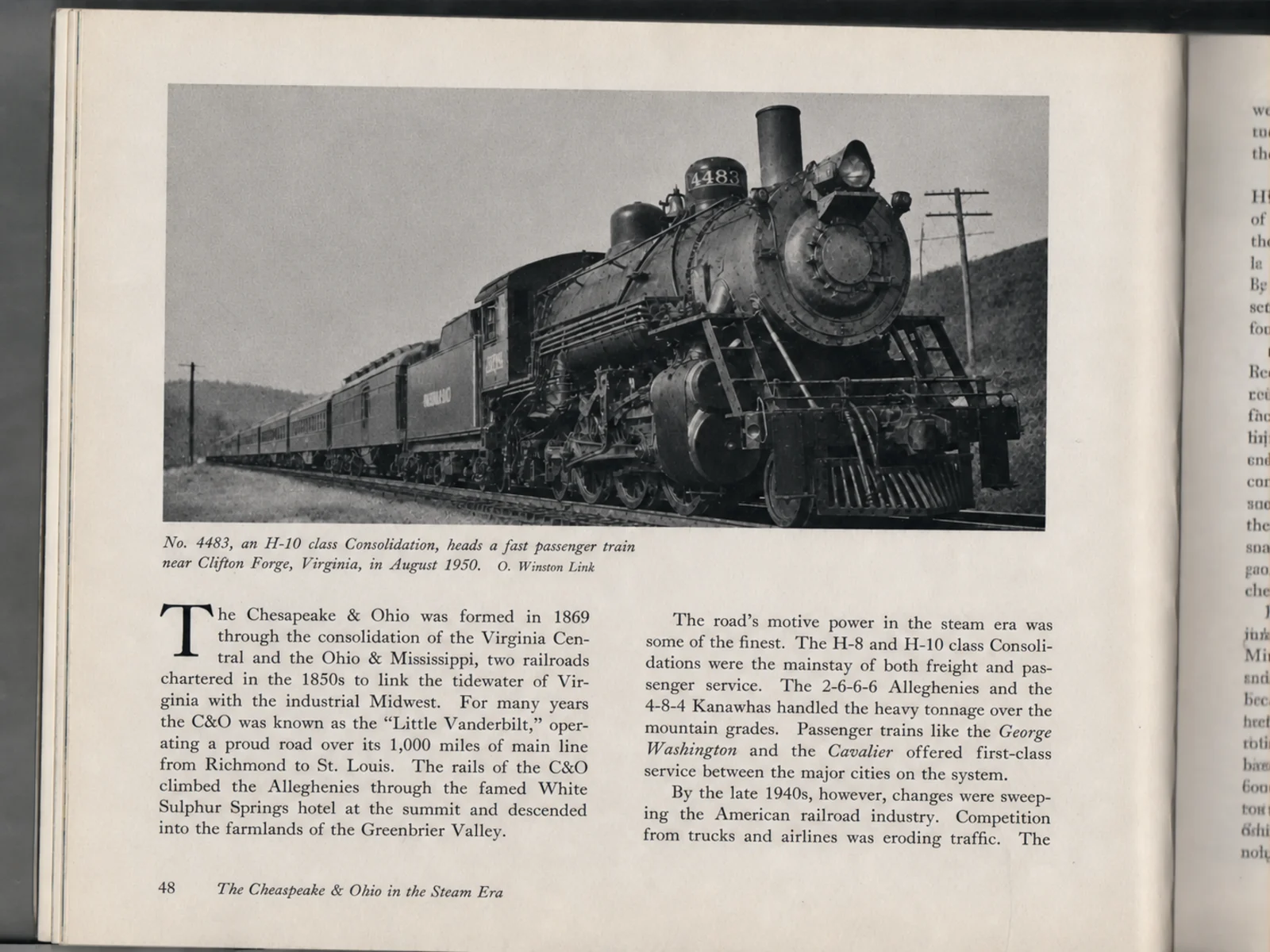
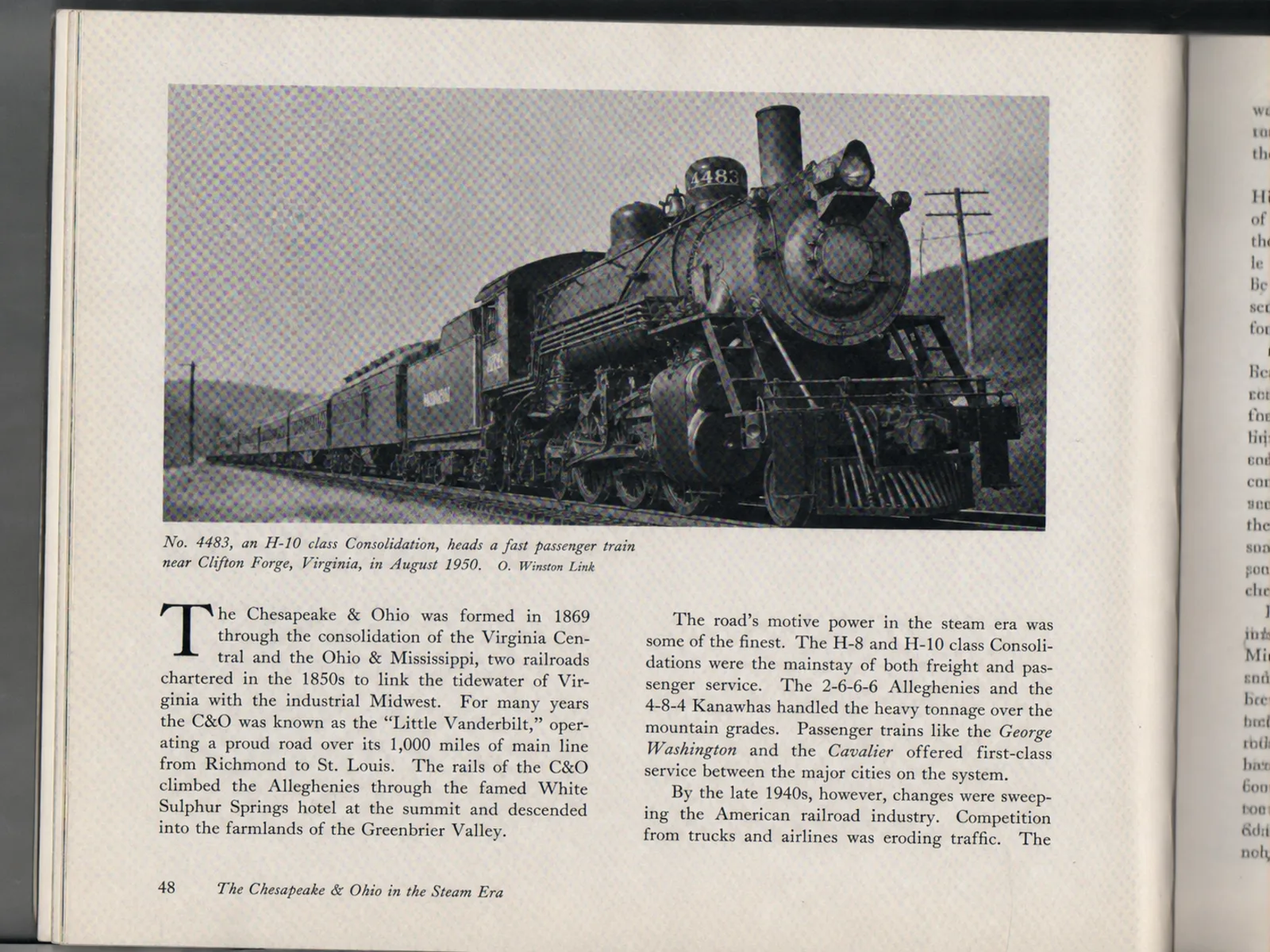
Before
After
Scanned Document
A printed page with visible halftone texture, cleaned into smooth continuous tones.
Descreen your scanned images online free. Remove halftone dots and printing patterns from magazines, newspapers, and printed materials with AI-powered descreening.
Drop your photo here or click to upload
Supports JPG, PNG (Max 10MB)
Or try with a sample
Drag the slider to compare original scans with the AI-descreened results. Halftone dots disappear while text and detail stay sharp.
A printed page with visible halftone texture, cleaned into smooth continuous tones.


Scanner moire and print patterns removed from an article scan, ready for digital archiving.
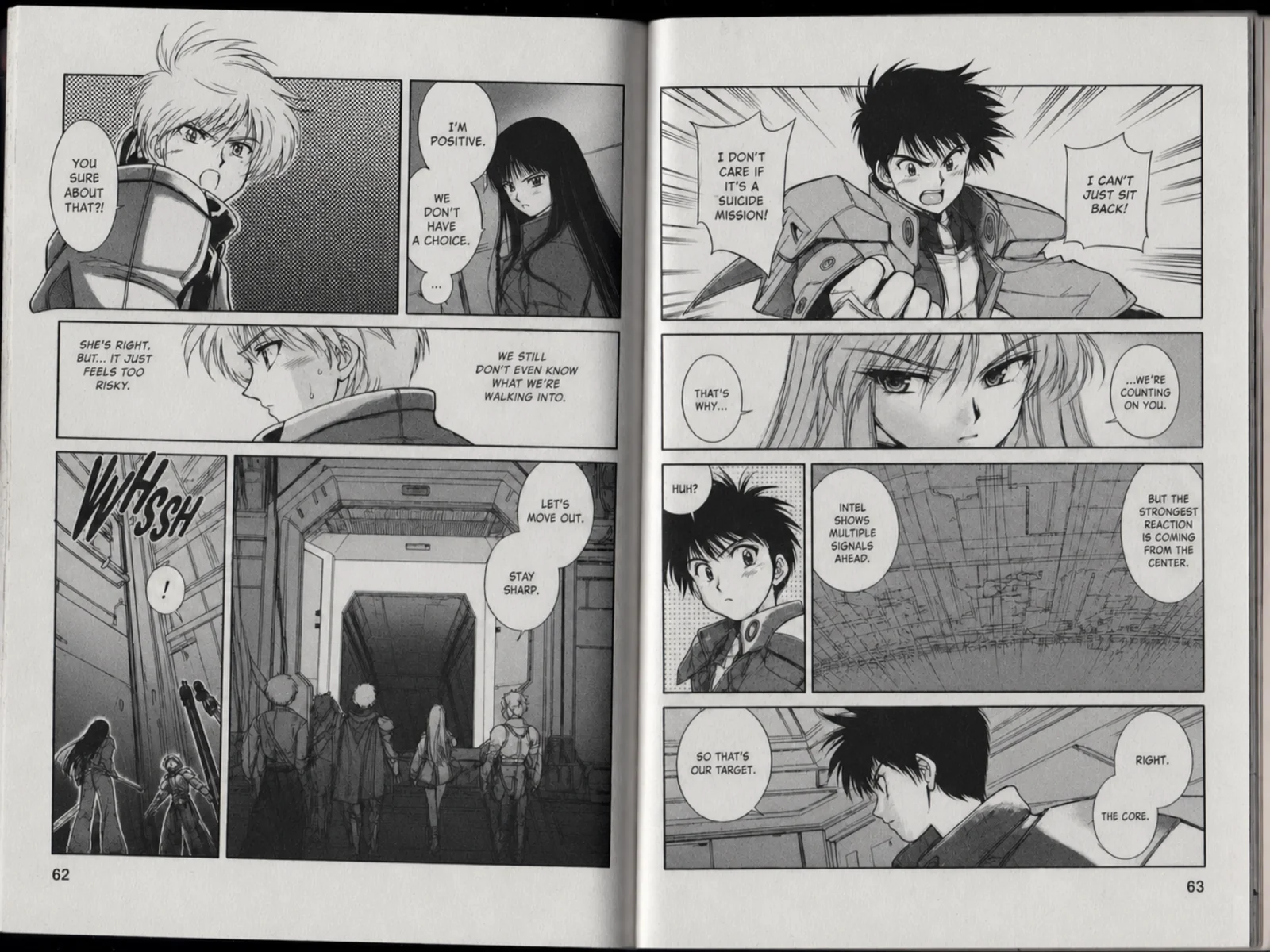
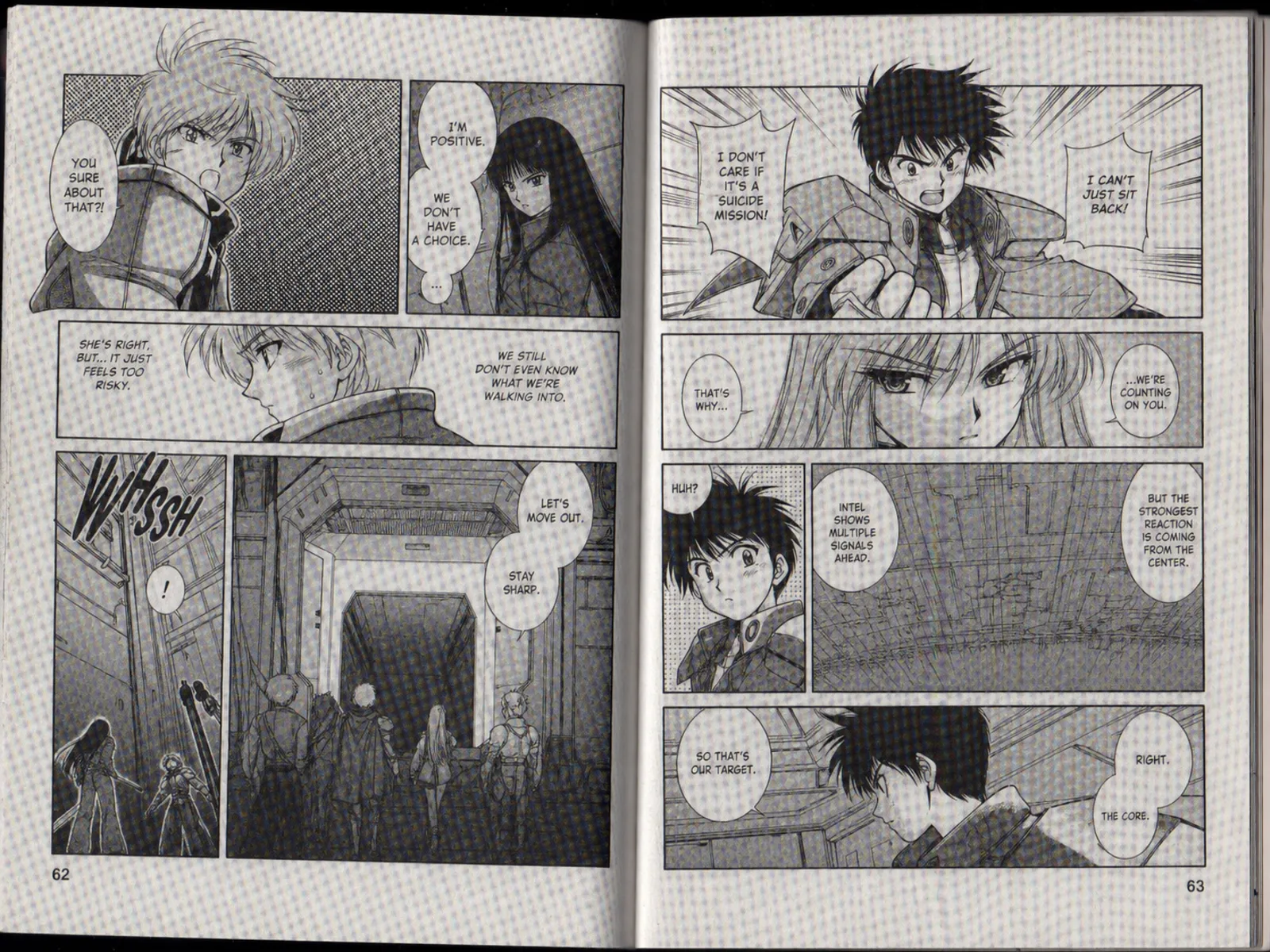
Screentone dots in scanned manga and comics turn into distracting moire — descreened while line art stays sharp.
Why scans need descreening
Printed images are not continuous tones — they are made of tiny halftone dots. Scanners capture those dots faithfully, and that is exactly where the trouble starts.
Offset printing simulates smooth color with CMYK dot grids. On paper they blend at reading distance; in a scan they become a visible dot texture.
The scanner samples the page on its own fixed grid. When the sampling grid and the halftone grid overlap, they interfere and create scanner moire.
Shrinking or rotating a scanned image resamples the dots yet again, so moire often gets worse after editing or uploading, not better.
Saving a dotted scan as JPEG adds block artifacts on top of the halftone pattern, making cheap blur filters even less effective.
Every printed image is a grid of halftone dots — and every scanner turns that grid into moire. The AI dissolves the pattern and rebuilds the continuous tones underneath.
Glossy pages without the CMYK rosette grid.
Clippings and archives, cleaned and readable.
Screentones dissolved, linework untouched.
Print-ready digital copies of printed artwork.
Brochures and reports scan clean.
Product pages digitized without interference.
Advanced AI specifically designed for removing printing artifacts from scans.
Our AI is specifically trained to detect and remove halftone dot patterns (CMYK printing dots, including scanner moire) from scanned images.
Removes printing patterns while keeping fine details, text, and image quality intact.
Built-in scanner descreen filters blur everything. Our AI dissolves the dot grid and keeps text and faces sharp.
Supports up to 4K output resolution for print-ready quality results.
Perfect for digitizing historical documents and creating clean digital archives.
Process scanned images in seconds with our optimized AI pipeline.
Upload and process multiple scanned documents simultaneously, ideal for archival digitization and bulk document processing.
Your images are processed securely and automatically deleted after processing. We never store or share your data.
Simple 3-step process: upload, process, download. No expertise required.
There are three common ways to descreen a scanned image. Here is how they compare on real magazine and book scans.
| Method | Best for | Typical effort |
|---|---|---|
| AI descreening tool (this tool)Best quality | Halftone dots, scanner moire, and print patterns on any scan — color or black-and-white. | Upload the scan, let the AI separate dots from detail, preview, download — around 10-20 seconds. |
| Photoshop descreen workflow | Users who already own Photoshop and need occasional cleanup with full manual control. | Gaussian blur plus sharpening, or an FFT plugin; settings must be re-tuned for every print frequency. |
| Scanner driver descreen (Epson, Canon) | Quick low-quality scans where softness is acceptable. | Tick the descreen checkbox before scanning; results are blurry because it simply low-pass filters the whole page. |
| Rescan at higher DPI | Cases where dots are too coarse for any filter. | Rescanning at 600 DPI helps the AI, but on its own it makes the dot pattern sharper, not cleaner. |
Quick guide to removing halftone patterns from your scanned printed materials.
Choose 1K for web use, 2K for digital archives, or 4K for print-ready reproductions.
Drag and drop or click to upload your scanned image. Supports JPG, PNG, and WebP formats.
Our AI detects CMYK halftone patterns and printing artifacts, removing them while preserving image detail and text clarity.
Compare the original scan with the descreened result, then download your clean image.
Scanning tips
A good source scan gives the AI more to work with. Four settings that make the biggest difference before you upload.
Higher resolution captures the dot structure clearly, which lets the AI separate halftone dots from real detail instead of guessing.
Disable the built-in descreen option in Epson Scan, Canon IJ Scan, or VueScan. It blurs the page before the AI ever sees it.
Lossless formats avoid JPEG blocks on top of the halftone pattern. If you must use JPG, choose the highest quality setting.
Rotating a scan afterwards resamples the dot grid and can reintroduce moire. Align the page on the scanner bed instead.
Common questions about descreening scanned printed materials.
Descreening is the process of removing halftone dot patterns that appear when you scan printed materials. These dots are how printers create the illusion of continuous color, but they create unwanted patterns (moire) in digital scans.
Our tool works with all types of printed materials: magazine pages, newspaper clippings, book illustrations, brochures, posters, and any other commercially printed content.
Our AI is trained to preserve text while removing halftone patterns from images. Text areas remain sharp and readable after processing.
Yes! Our tool is excellent for archival work. It can handle scans from various printing eras and methods, making it perfect for digitizing historical materials. For glossy prints where the scanner lamp leaves bright glare, run the result through our photo glare remover as a second pass.
For best descreening results, scan at 300-600 DPI. Higher resolution scans give our AI more data to work with, resulting in cleaner output.
Our AI-based approach typically produces better results than traditional descreen filters because it can intelligently distinguish between image content and printing artifacts, preserving more detail.
Descreening specifically targets halftone dot patterns from printed materials (newspapers, magazines, books). General moire removal handles interference from digital screens and camera sensors. Our descreening tool is optimized for print-origin artifacts like CMYK dot patterns. For a full explanation, see our guide on what descreening is.
Scan at 300-600 DPI for best results. Disable your scanner's built-in descreening feature (it's usually inferior to AI). Save as PNG or TIFF to avoid JPEG compression artifacts before processing.
Yes! Our AI works with full-color CMYK scans, grayscale images, and black-and-white prints. It adapts its processing to the scan type for optimal halftone removal.
Yes — export the PDF pages as images first (most PDF readers offer Export as JPG or PNG), then upload them here. Batch processing lets you descreen multiple pages in one go, which is the practical way to clean a whole scanned document or magazine PDF.
Descreen is a checkbox in scanner software (Epson Scan, VueScan, Canon IJ and others) that blurs the halftone dot grid of printed originals during scanning to prevent moire. Because it softens the whole image, fine detail and text suffer. Our AI descreening tool does the same job after scanning — it removes dots and moire while keeping text sharp, even if you forgot to enable the driver setting.
Get clean, halftone-free images from your scans in seconds.