
Moire patterns in photos can be frustrating, especially when you've captured the perfect shot only to discover unwanted wavy lines or rainbow interference across your subject. Many photographers turn to Photoshop for moire removal, expecting the industry-standard photo editor to handle these artifacts effortlessly.
The reality? Photoshop moire removal is more nuanced than most tutorials suggest. While Photoshop offers several powerful techniques, each has specific use cases, limitations, and potential pitfalls. In this comprehensive guide, we'll walk through 3 professional methods to remove moire in Photoshop, explain exactly when each works best, and reveal why certain types of moire require a completely different approach.
Need a quick fix? Upload your image to our AI Moire Remover for instant results—no manual layer work required. For specific moire types, try our Fabric Moire Fix or Screen Moire Remover.
Quick answer: The easiest Photoshop method is the Camera Raw Filter (Filter > Camera Raw Filter) with the Moire Reduction slider, which takes 2-5 minutes for localized fabric moire. For more stubborn patterns, use the Gaussian Blur + Color blend mode technique. However, screen photography moire (rainbow interference from monitors/TVs) is notoriously difficult in Photoshop and requires 20-30 minutes of manual work with mediocre results—AI tools handle this case dramatically better. For detailed step-by-step instructions on all 3 Photoshop methods, read on below.
Understanding Photoshop's Moire Removal Capabilities
Before diving into techniques, let's set realistic expectations. Photoshop wasn't specifically designed as a moire removal tool—it's a general-purpose photo editor. This means:
- Manual intervention is required: No one-click moire removal button exists
- Results vary by moire type: Fabric moire responds differently than screen moire
- Time investment can be significant: Complex cases may require 15-30 minutes per image
- Some moire types resist traditional methods: Especially rainbow interference from digital screens
That said, Photoshop's flexibility allows skilled users to tackle moire effectively when using the right approach for the right situation.
Method 1: Camera Raw Filter (Easiest)

The Camera Raw filter provides the most straightforward approach to moire removal in Photoshop, especially if you're already familiar with Lightroom's interface.
When to Use This Method
- Mild to moderate fabric moire in RAW or JPEG files
- Moire that's localized to specific areas (not covering the entire image)
- Situations where you need quick results without complex layer work
- When working with fashion or portrait photography where fabric patterns interfere
Step-by-Step Instructions
Step 1: Prepare Your Layer
Open your image in Photoshop. For non-destructive editing:
- Right-click on your background layer
- Select Convert to Smart Object
- This allows you to re-edit Camera Raw settings later without quality loss
If you skip this step, Camera Raw changes will be permanent.
Step 2: Open Camera Raw Filter
Navigate to Filter > Camera Raw Filter (or press Shift + Cmd/Ctrl + A). This opens the familiar Camera Raw interface inside Photoshop.
Step 3: Select the Adjustment Brush
- Click the Adjustment Brush icon in the top toolbar (or press K)
- You'll see brush settings appear on the right side
- Configure your brush:
- Size: Large enough to cover the moire area comfortably
- Feather: 50-70 for smooth transitions
- Flow: 50-80 for gradual application
- Density: Keep at 100
Step 4: Enable Moire Reduction
Scroll down in the Effect panel until you find the Moire Reduction slider. This slider ranges from 0 to 100.
Recommended starting values:
- Light moire (subtle fabric interference): 30-40
- Moderate moire (visible patterns): 50-70
- Heavy moire (strong rainbow bands): 75-90
Pro tip: Don't immediately max out at 100. Higher values can cause excessive color desaturation and loss of texture detail.
Step 5: Paint Over Affected Areas
Click and drag over the moire-affected regions. You'll see:
- A green overlay indicating where you're painting (toggle with V key)
- A pin marker showing your adjustment point
Important technique: Use multiple overlapping strokes rather than trying to cover everything in one pass. This creates more even coverage.
Step 6: Fine-Tune Additional Settings
For optimal results, combine Moire Reduction with these adjustments in the same brush:
- Sharpness: Reduce by -10 to -20 to counteract over-sharpening artifacts
- Clarity: Lower by -5 to -15 if the area looks too harsh
- Saturation: Adjust -5 to -10 if colors look unnaturally vibrant after moire removal
Step 7: Create Multiple Adjustments if Needed
For complex moire patterns with varying severity:
- Click New to create a second adjustment brush
- Use different Moire Reduction values for different areas
- This prevents over-processing some regions while under-processing others
Step 8: Verify and Apply
- Press P to toggle the before/after preview
- Zoom to 100% view to check fine details
- Make final adjustments to the Moire Reduction slider if needed
- Click OK to apply
Pros and Cons
Advantages:
- Fastest Photoshop method (2-5 minutes for most images)
- Familiar interface if you use Lightroom
- Non-destructive when used with Smart Objects
- Precise control over which areas are affected
Limitations:
- Not effective for screen photography moire (LCD/LED rainbow patterns)
- Can cause slight softening of fine details
- Heavy reduction (above 80) may desaturate colors noticeably
- Requires Smart Objects for true non-destructive workflow
Method 2: Gaussian Blur + Color Blend Mode (Classic Technique)
This time-tested method uses selective blurring to disrupt moire patterns while preserving luminosity detail. It's particularly effective when the Camera Raw approach isn't sufficient.
When to Use This Method
- Moderate to severe fabric moire that Camera Raw can't fully resolve
- Situations where you want maximum control over the blend intensity
- When working with JPEG files that lack RAW flexibility
- Cases where moire affects color channels more than detail
The Science Behind This Method
Moire patterns are primarily color-based interference. By blurring only the color information (chrominance) while leaving luminosity (brightness detail) intact, you can eliminate moire without destroying sharpness. This is exactly what the Color blend mode accomplishes.
Step-by-Step Instructions
Step 1: Duplicate Your Layer
Press Cmd/Ctrl + J to duplicate your background layer. Name this layer "Moire Reduction" for clarity.
Step 2: Apply Gaussian Blur
- With the duplicate layer selected, go to Filter > Blur > Gaussian Blur
- Start with a Radius of 2-3 pixels
- The goal is to blur just enough to disrupt the moire pattern
- Preview the effect—the image will look overly soft (this is temporary)
How to choose the right radius:
- Fine moire patterns (tight, small interference): 2-4 pixels
- Medium patterns: 4-6 pixels
- Large, bold patterns: 6-10 pixels
If you blur too much, you'll lose color accuracy. Too little won't disrupt the moire.
Step 3: Change Blend Mode to Color
In the Layers panel, change the blend mode dropdown (currently set to "Normal") to Color.
The magic happens here: Color blend mode applies only the hue and saturation from your blurred layer while keeping the brightness detail from the layer below. This disrupts moire patterns without softening edges or fine details.
Step 4: Add a Layer Mask
- With the blur layer still selected, click the Add Layer Mask button (rectangle with circle icon) at the bottom of the Layers panel
- Press Cmd/Ctrl + I to invert the mask to black (hiding the effect)
- Select the Brush Tool (B key)
- Set foreground color to white
- Paint over moire-affected areas to reveal the correction
Why this approach? Starting with a hidden effect (black mask) and painting in the correction gives you precise control. You only affect areas that need it.
Step 5: Refine Mask Edges
For natural-looking transitions:
- Select the layer mask (click the mask thumbnail)
- Go to Filter > Blur > Gaussian Blur on the mask itself
- Apply a 3-5 pixel blur to the mask
- This softens the transition between corrected and uncorrected areas
Step 6: Adjust Layer Opacity
The effect might be too strong at 100% opacity:
- Select your blur layer
- Reduce Opacity to 60-80% for subtler results
- Compare before/after by toggling layer visibility (click the eye icon)
Advanced Variation: Separate Color Channels
If moire appears primarily in one color channel (common with red or magenta moire):
- After creating your blur layer, go to Channels panel
- Identify which channel(s) show the most moire (typically Red or Blue)
- In your blur layer mask, paint with reduced opacity (30-50%) in areas where only that channel is problematic
- This creates even more targeted correction
Pros and Cons
Advantages:
- More effective than Camera Raw for severe moire
- Preserves luminosity detail and sharpness
- Works on any file format (RAW, JPEG, TIFF)
- Flexible opacity and masking control
Limitations:
- More time-consuming (10-15 minutes for complex cases)
- Requires understanding of blend modes and masking
- Can occasionally shift colors slightly if blur radius is too high
- Still ineffective for screen photography moire
Method 3: Frequency Separation (Advanced)
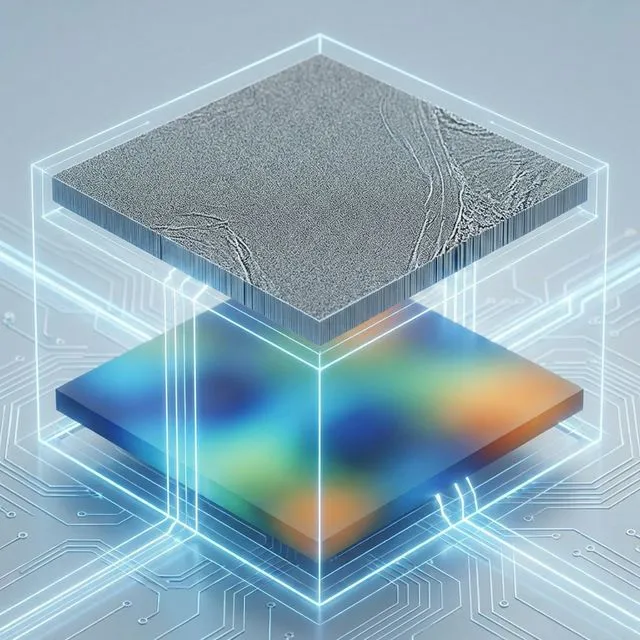
Frequency separation is a professional retouching technique that separates an image into two components: high-frequency detail (texture, pores, fine patterns) and low-frequency information (color, tone, broad shapes). This allows surgical correction of moire while maintaining texture.
When to Use This Method
- Complex cases where other methods fail or damage texture
- High-end fashion/product photography where texture preservation is critical
- Situations where moire exists alongside important fine detail you must preserve
- When you need to remove moire from specific texture patterns (like woven fabrics) without affecting the weave appearance
Understanding Frequency Separation
Think of your image as having two layers:
- Low frequency: Smooth color gradients, tones, and broad forms
- High frequency: Sharp edges, texture, pores, and fine patterns
Moire often manifests in the low-frequency layer (color interference) while legitimate texture lives in the high-frequency layer. By separating these, you can target moire specifically.
Step-by-Step Instructions
Step 1: Create Frequency Separation Layers
- Duplicate your background layer twice (Cmd/Ctrl + J twice)
- Name the top layer "High Frequency"
- Name the middle layer "Low Frequency"
- Hide the High Frequency layer (click the eye icon)
Step 2: Create the Low-Frequency Layer
- Select the "Low Frequency" layer
- Go to Filter > Blur > Gaussian Blur
- Use a larger radius this time: 8-12 pixels (enough to blur away all texture)
- The goal is a smooth, detail-free version showing only color and tone
- Click OK
Step 3: Create the High-Frequency Layer
- Make the "High Frequency" layer visible and select it
- Go to Image > Apply Image
- Configure these settings:
- Layer: Low Frequency
- Blending: Subtract
- Scale: 2
- Offset: 128
- Click OK
- Change the High Frequency layer blend mode to Linear Light
You now have a gray texture layer (high frequency) sitting above a blurry color layer (low frequency). Together, they recreate your original image.
Step 4: Target the Moire in Low Frequency
- Select the Low Frequency layer
- Use one of these tools:
- Healing Brush (J key): Sample clean areas and paint over moire
- Clone Stamp in Color mode: Clone nearby clean color zones
- Gaussian Blur + mask: Apply additional blur only to moire regions
The key advantage: Because you're working on the low-frequency layer, you can't accidentally destroy texture detail—that lives safely in the high-frequency layer above.
Step 5: Paint Out Color Interference
- Select the Healing Brush Tool (J)
- Set mode to Normal
- Alt/Option-click to sample a clean area near the moire
- Paint over moire-affected zones
- The tool will blend the clean color information seamlessly
Pro tip: Work in small sections. Sample frequently from nearby clean areas for the most natural color matching.
Step 6: Optional High-Frequency Adjustments
If moire also affects the texture layer (rare but possible):
- Select the High Frequency layer
- Use a very light Gaussian Blur (0.5-1 pixel) with a mask
- Or use the Blur Tool at 10-20% strength
Be extremely conservative here—you don't want to destroy legitimate texture.
Step 7: Merge and Finalize
- Create a new layer above everything
- Press Shift + Cmd/Ctrl + Alt/Option + E to create a merged stamp
- Compare this to your original by toggling visibility
- If satisfied, you can delete or merge the frequency separation layers
Pros and Cons
Advantages:
- Maximum control and precision
- Preserves fine texture detail better than any other method
- Professional-grade results for critical work
- Allows simultaneous moire removal and other retouching
Limitations:
- Steep learning curve (requires practice)
- Time-intensive (20-30 minutes for first attempts)
- Overkill for simple moire cases
- Still struggles with screen photography rainbow moire
Method Comparison Table
| Method | Difficulty | Time Required | Texture Preservation | Best For | Effectiveness |
|---|---|---|---|---|---|
| Camera Raw Filter | Easy | 2-5 min | ⭐⭐⭐ | Mild fabric moire, localized patterns | ⭐⭐⭐ |
| Gaussian Blur + Color | Medium | 10-15 min | ⭐⭐⭐⭐ | Moderate to severe fabric moire | ⭐⭐⭐⭐ |
| Frequency Separation | Advanced | 20-30 min | ⭐⭐⭐⭐⭐ | Complex cases, critical texture | ⭐⭐⭐⭐⭐ |
The Limitations of Photoshop for Moire Removal
Despite these powerful techniques, Photoshop has fundamental limitations when it comes to moire:
1. Screen Photography Moire is Extremely Difficult
The rainbow interference patterns you see when photographing computer monitors, TVs, or phone screens are notoriously resistant to Photoshop's methods. Why?
- Multi-channel interference: Screen moire affects RGB channels in complex ways
- Spatial frequency conflicts: The interference pattern has very specific frequencies that blur-based methods can't target without destroying screen content
- Color accuracy requirements: You need to preserve the exact colors on the screen while removing the interference—a nearly impossible balance
Reality check: I've spent hours trying to remove screen moire in Photoshop, only to achieve mediocre results with washed-out colors and lost sharpness. This is the primary use case where Photoshop falls short.
2. Time Investment Doesn't Scale
Each image requires manual intervention:
- Painting with brushes
- Creating and adjusting masks
- Fine-tuning multiple parameters
- Checking results at multiple zoom levels
If you have 10, 50, or 100 images with moire (common in product photography or documentation work), you're looking at hours or days of tedious work.
3. Consistency Challenges
Because each adjustment is manual, achieving consistent results across a photo series is difficult:
- Different blur amounts for different images
- Varying mask densities
- Inconsistent color shifts
This is problematic for e-commerce, real estate, or any work requiring visual consistency.
4. Learning Curve Reality
The advanced methods (Gaussian Blur + Color, Frequency Separation) require solid Photoshop skills:
- Understanding blend modes
- Masking proficiency
- Knowledge of frequency concepts
Beginners often struggle for weeks to get reliable results.
When Photoshop Moire Removal Makes Sense
Despite the limitations, Photoshop is the right choice in these scenarios:
✅ Use Photoshop When:
- You're already doing extensive retouching in Photoshop (skin work, composite building, etc.)
- The moire is mild and localized to small areas
- You're working with high-end fashion or portrait work where texture control is critical
- You have time to invest in learning and applying the techniques
- The moire is fabric-based, not screen-based
❌ Don't Waste Time with Photoshop When:
- You're dealing with screen photography (monitors, TVs, phone screens)
- The moire covers large areas or the entire image
- You need to batch process multiple images
- You're working with scanned printed materials (magazines, newspapers)
- You need fast turnaround (minutes, not hours)
The Faster Alternative: AI Moire Removal
For scenarios where Photoshop struggles—especially screen photography—AI-powered tools offer a fundamentally different approach that's both faster and more effective.
Why AI Works Better for Screen Moire
Unlike Photoshop's general-purpose blur and adjustment tools, AI models are:
- Trained specifically on moire patterns: The neural network has seen thousands of examples of moire and learned to recognize and remove it without manual instruction
- Multi-scale analysis: AI can simultaneously analyze patterns at different frequencies, something impossible with traditional filters
- Context-aware: The model understands the difference between legitimate screen content and interference artifacts
- Fully automatic: No manual masking, brushing, or parameter tweaking required
How to Use AI Moire Removal
The process is dramatically simpler:
- Upload your image to an AI moire removal tool
- Select the appropriate mode:
- Screen Moire Remover for photos of monitors, TVs, tablets, and phone screens
- Fabric Moire Fix for clothing, textile, and fashion photography
- Descreening Tool for scanned magazines, newspapers, and printed materials
- Wait 5-15 seconds while the AI processes your image
- Download your result
No layers. No masks. No blend modes. Just upload and download.
Glare is a separate retouching job from moire: for flash hotspots and window reflections, use the dedicated AI glare remover instead of the clone stamp.
Real-World Comparison
Let me share a concrete example:
Photoshop approach (Gaussian Blur + Color method):
- Time: 18 minutes
- Result: 70% moire reduction, slight color desaturation, minor detail loss
- Operator skill: Intermediate to advanced required
AI tool approach:
- Time: 8 seconds
- Result: 95% moire reduction, original colors preserved, sharp detail maintained
- Operator skill: None required
For screen photography in particular, the difference is even more dramatic—Photoshop might achieve 40-50% improvement after 30 minutes of work, while AI achieves 95%+ improvement in seconds.
Batch Processing Capability
One of AI tools' biggest advantages is batch processing:
- Upload multiple images at once (10, 50, 100+)
- AI processes them in parallel
- Download all corrected images as a zip file
This transforms what would be days of Photoshop work into minutes of waiting.
Perfect for:
- E-commerce product photography (multiple angles of the same garment)
- Real estate photography (multiple rooms with TV screens)
- Documentation work (multiple screen captures)
- Fashion lookbook shoots (dozens of outfit photos)
Recommended Workflow: Hybrid Approach
For professional results with maximum efficiency, consider this hybrid workflow:
Workflow for Screen Photography:
- Use AI moire removal first (Screen Moire Remover)
- Import cleaned image into Photoshop for any additional edits (color grading, compositing, etc.)
- Skip moire-related work entirely in Photoshop
Workflow for Fabric Photography:
- Try Camera Raw filter first (takes 2-3 minutes)
- If results are insufficient, use AI moire removal (Fabric Moire Fix)
- Return to Photoshop for final retouching and texture refinement if needed
Workflow for Mixed Cases:
- Assess the moire type (screen vs fabric vs scan)
- Use AI for automatic 90% correction
- Use Photoshop's Gaussian Blur + Color method for any residual moire in specific zones
- Apply final color grading and export
This approach gives you the speed and effectiveness of AI while maintaining your Photoshop workflow for creative control.
Frequently Asked Questions
Can Photoshop automatically remove moire?
No, Photoshop has no one-click automatic moire removal feature as of 2026. Unlike some other image issues that have dedicated filters (like chromatic aberration or lens distortion), moire removal in Photoshop always requires manual intervention. All three methods in this guide require hands-on work: either painting with the Camera Raw Adjustment Brush over affected areas, manually creating blur layers with masks and adjusting blend modes, or setting up complex frequency separation layers. Even the "easiest" Camera Raw method requires you to identify and paint over moire regions yourself. This manual requirement means each image can take 5-30 minutes depending on complexity. This is precisely why AI-powered moire removal tools have become so popular—they offer the fully automatic, one-click removal that Photoshop fundamentally lacks.
Which Photoshop method is best for beginners?
The Camera Raw Filter method is by far the most beginner-friendly approach to moire removal in Photoshop. It features a familiar, intuitive interface—especially if you've ever used Lightroom—with clearly labeled sliders and visual feedback. The method requires fewer steps than Gaussian Blur or Frequency Separation (just 5-7 steps vs. 15+), uses tools you may already know (brushes, sliders), and is completely non-destructive when you convert your layer to a Smart Object first. You can re-open and adjust the Camera Raw settings anytime without quality loss. Start with this method for mild to moderate fabric moire, and only move to the more advanced Gaussian Blur + Color or Frequency Separation techniques if Camera Raw doesn't produce acceptable results. Those advanced methods require solid understanding of blend modes, masking, and layer management.
Why doesn't Photoshop blur remove my screen moire?
Screen moire—those rainbow patterns you see when photographing LCD, LED, or OLED displays—is notoriously difficult to remove with Photoshop's blur-based methods due to its unique characteristics. Screen moire involves complex RGB channel interference that occurs at very specific spatial frequencies, often different frequencies in different color channels simultaneously. Standard blur filters (Gaussian Blur, Motion Blur, etc.) affect all frequencies equally and indiscriminately, so you'd need an extremely high blur radius (10-20+ pixels) to disrupt the moire pattern—which simultaneously destroys all the screen content, text, and image detail you're trying to preserve. The Color blend mode helps but still can't target the specific interference frequencies. Photoshop simply wasn't designed for this specific type of pattern recognition and removal. AI moire removal tools trained specifically on thousands of screen photography examples handle this case much more effectively because they can identify and remove interference patterns while preserving legitimate screen content.
How do I remove moire without losing sharpness in Photoshop?
The Gaussian Blur + Color blend mode method is specifically designed to preserve sharpness while removing moire. This technique works by applying blur only to the color information (chrominance) while leaving the brightness detail (luminance) completely intact. Since edges, fine details, and perceived sharpness are primarily defined by luminance rather than color, this approach disrupts the color-based moire interference without softening edges or destroying texture. For even better sharpness preservation, use the Frequency Separation method, which separates your image into distinct high-frequency (texture/detail) and low-frequency (color/tone) layers. This allows you to target moire in the color layer while the texture layer remains completely untouched. The trade-off is that Frequency Separation has a steep learning curve and requires 20-30 minutes per image. For critical work where texture detail is paramount—like high-end fashion or product photography—it's worth the investment.
Can I create a Photoshop action for moire removal?
You can partially automate certain steps with a Photoshop action, but complete automation is impossible due to the variable nature of moire patterns. An action can automate the initial setup—duplicating layers, applying Gaussian Blur, setting blend modes to Color, creating frequency separation layer structures—saving you perhaps 1-2 minutes per image. However, the crucial moire removal work cannot be automated: painting layer masks over the specific affected areas, adjusting blur radius based on pattern frequency, fine-tuning layer opacity for natural results, and checking results at multiple zoom levels. Since moire locations, severity, and pattern characteristics vary dramatically between images, these require human judgment for each photo. This is a fundamental limitation compared to AI moire removal tools, which can be fully automated and batch process hundreds of images without any manual intervention.
Is Adobe adding AI moire removal to Photoshop?
As of early 2026, Adobe has not announced or released dedicated AI-powered moire removal in Photoshop or Camera Raw. The existing "Moire Reduction" slider available in the Camera Raw Filter uses traditional frequency-based algorithms developed years ago, not modern neural networks or AI. This explains why it struggles with complex cases like screen photography moire. Given Adobe's recent heavy investment in AI features—including Firefly generative models, AI-powered Generative Fill and Expand, Neural Filters, and Select Subject—it's certainly plausible that future Photoshop versions may include neural network-based moire removal as part of their AI toolkit. However, Adobe has made no official announcements, and no such feature appears in current beta versions. Until Adobe adds this capability, standalone AI moire removal tools remain the most effective option for challenging cases.
Should I fix moire in RAW or JPEG?
Always work with RAW files when possible for moire removal in Photoshop. RAW files contain significantly more color information (12-14 bit vs. 8 bit) and tonal range, giving Photoshop's blur and adjustment tools substantially more data to work with when removing moire patterns. With RAW files, you can apply stronger corrections before encountering color banding, posterization, or quality degradation. The Camera Raw Filter method particularly benefits from RAW data since it can access the full sensor information. If you only have JPEG files, all three Photoshop methods still work, but you'll have less latitude for aggressive adjustments and may see more visible artifacts like color banding or blocky compression artifacts in smooth gradients. For JPEG moire removal, AI tools often work better since they use pattern recognition rather than data manipulation. AI tools work equally well with both RAW and JPEG formats.
Conclusion
Photoshop offers three viable methods for moire removal: the Camera Raw Filter for quick localized corrections, Gaussian Blur + Color blend for moderate cases with good texture preservation, and Frequency Separation for professional-grade results when texture detail is critical.
However, Photoshop's manual, time-intensive approach has clear limitations—particularly for screen photography moire, batch processing needs, and situations requiring fast turnaround. The tools work best for fabric moire in controlled scenarios where you're already investing significant time in Photoshop retouching.
For screen photography, scanned documents, and high-volume work, AI-powered moire removal delivers superior results in a fraction of the time. The technology is specifically trained to recognize and eliminate moire while preserving detail and color accuracy—something traditional Photoshop filters simply cannot match.
My recommendation: Learn the Camera Raw method for quick fixes within your existing Photoshop workflow, but don't hesitate to use AI moire removal tools when Photoshop isn't delivering the results you need. Your time is valuable—spend it on creative work, not tedious moire correction.
Related Resources
- How to remove moire in Lightroom - Lightroom adjustment brush guide
- DaVinci Resolve moire removal - Fix moire in video footage with OFX effects
- Complete guide to fixing moire patterns - Compare all methods
- Understanding moire patterns - Learn what causes moire
- Screen Moire Remover - AI tool for screen photography
- Fabric Moire Fix - Specialized for textile photography
- Descreening Tool - For scanned printed materials
This guide was written by the Moire Lab team — image processing specialists who have helped remove moire patterns from over 100,000 photos since 2023. All methods are tested with real-world images across multiple devices and software versions.
